A common confusion is treating the Motion Control prompt like a text-to-video prompt that generates the action. It isn't. The reference video is the choreographer; the prompt is the set designer. Get that split right and prompts become a powerful, low-risk way to make the same motion look completely different across scenes.
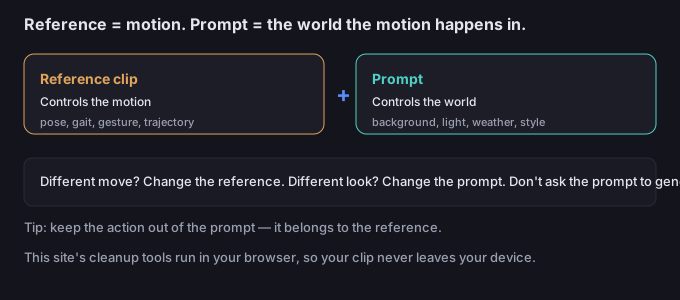
What the prompt controls vs what the reference controls
| Comes from the reference | Comes from the prompt |
|---|---|
| Body pose and trajectory over time | Background and location |
| Gesture, gait, dance move | Lighting and time of day |
| Camera-relative body movement | Weather, atmosphere, mood |
| The subject's identity (from the character image) | Art style, film grain, color grade |
Practically: if you want a different move, change the reference. If you want a different look, change the prompt. Trying to "walk" via the prompt when your reference is a spin will just confuse the model.
A library of prompt snippets by scenario
Treat each line as a fill-in-the-blank building block. Combine one subject line with one scene line and one style line.
Scene / location lines
[character] on a quiet city sidewalk at golden hour, soft backlight[character] in a neon-lit Tokyo alley at night, rain-slick pavement[character] on a windswept cliff overlooking the sea, overcast light[character] inside a minimalist studio with a seamless gray backdrop[character] on a sunny meadow, lens flare, shallow depth of field
Lighting / time lines
warm golden-hour light, long soft shadowshard midday sun, high contrastcinematic low-key lighting, single key lightsoft diffused overcast light, even exposuredramatic rim light, dark background
Style / grade lines
photorealistic, 35mm film look, subtle grainclean 3D render style, soft ambient occlusionanime cel-shading, bold outlinesvintage 1970s stock footage, faded colorshigh-fashion editorial, muted palette
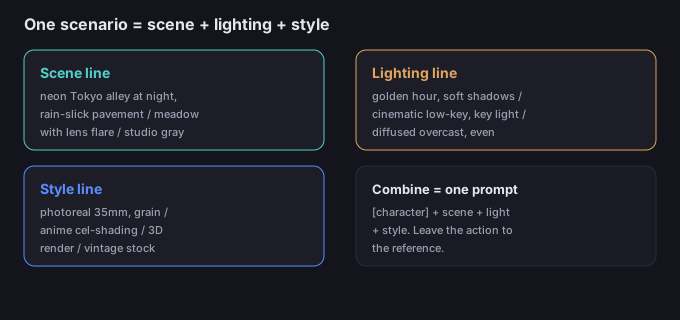
How to combine without fighting the motion
A safe prompt recipe is: [character] + [scene line] + [lighting line] + [style line]. Example: [character] on a neon-lit Tokyo alley at night, rain-slick pavement, cinematic low-key lighting, single key light, photorealistic 35mm film look. Notice the action is absent — it's inherited from the reference.
5-step prompt workflow
- Fix the reference first. The motion must read on its own before you touch the prompt.
- Pick the scenario. Where should this happen — studio, street, nature, stylized?
- Add one scene line + one lighting line. Two to three descriptive lines is usually enough.
- Add one style line if you want a non-realistic look; skip it for plain photoreal.
- Generate, then tune. If the background distracts from the motion, simplify the scene line; if the look is off, change only the style line.
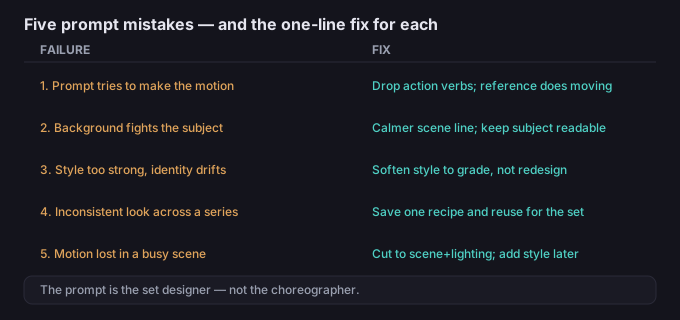
5 failure modes (and the fixes)
| Failure | Why it happens | Fix |
|---|---|---|
| Prompt "tries" to create the motion | Action words in the prompt conflict with the reference | Remove movement verbs; let the reference do the moving |
| Background fights the subject | Scene line too busy or high-contrast behind the body | Use a calmer scene line; keep the subject readable |
| Style too strong, identity drifts | Heavy stylization rewrites the character | Soften the style line; keep it to grade, not redesign |
| Inconsistent look across a series | Different prompts per clip | Save one prompt recipe and reuse it for the whole set |
| Motion lost in a busy scene | Too many competing elements | Cut the prompt to scene + lighting only; add style later |
What to do when the motion is right but the look isn't
The reference got the move; the prompt is only responsible for the wrapper. Change the wrapper, not the choreography. And once you have the clip you want, you can drop or replace the background with the browser tool on this site — it processes the clip in-device, so your media never has to be uploaded to a server.
Common questions
Should the prompt describe the action?
No. The reference supplies the motion. The prompt should describe the scene, lighting, and style around the subject.
Can I make it look animated instead of real?
Yes — add a style line like "anime cel-shading" or "3D render style." Keep it to the look; the movement still comes from the reference.
Why does my character change when I add a style?
Very strong stylization can rewrite identity. Soften the style line so it grades the image rather than redesigning the character.
Is my clip uploaded when I edit it later?
Not on this site. The background tools run in your browser, so the media stays on your device.