A Kling Motion Control clip nails the motion, but it leaves you a rectangular video with whatever was behind the character. If your goal is to float that character over a new background, you need the background gone and the subject kept with clean edges. That is a compositing job, and there are two honest ways to do it — and neither of them is a "transparent export" button inside Kling.
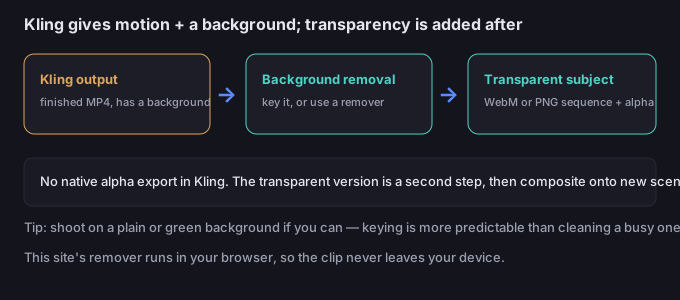
Why there is no native alpha export
Motion Control is built to produce a finished, shareable video — one MP4 with the character performing the reference motion inside a scene. A transparent export (an alpha channel carrying "this pixel is empty") would mean Kling also had to solve segmentation of a moving, deforming subject every frame, which is a separate model from motion transfer. So the product stops at "a good clip," and isolation is delegated to your editor or a remover. That is normal, not a limitation you are stuck with — it just means plan the handoff.
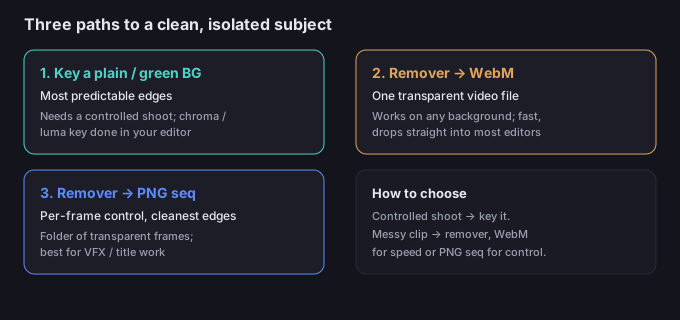
Three paths to a clean subject
Pick by what you shot and what you want to end up with:
| Path | What you need at generation | Output you get | Best when |
|---|---|---|---|
| Key a plain / green background | A clean, evenly lit or green backdrop behind the subject | Subject cut via chroma key or luma key in your editor | You controlled the shoot and want frame-accurate edges |
| Remover → transparent WebM | Any background; run the clip through a background remover | A single transparent video, easy to drop into an editor | You want one file and a fast result without keying by hand |
| Remover → PNG sequence | Any background; export frame-by-frame | A folder of transparent frames for precise compositing | You need per-frame control, VFX, or the highest edge quality |
Rule of thumb: if you set up the shot, key it; if you grabbed a clip with a messy background, let a remover do the work and choose WebM for speed or PNG sequence for control.
Transparent WebM vs PNG sequence
Both carry an alpha channel, but they behave differently:
- Transparent WebM keeps the clip as one video file with an alpha channel. It is small, portable, and drops straight into most modern editors. The catch: compression can soften thin or semi-transparent edges, and not every older editor reads alpha WebM.
- PNG sequence is a stack of still frames, each a transparent PNG. No compression artifacts on edges, perfect for frame-by-frame cleanup, but the folder is large and you re-assemble it in the editor as an image sequence. Best when quality matters more than convenience.
If you only need a clean subject over a new scene for social, transparent WebM is enough. If you are doing title work or VFX, export the PNG sequence.
Prepare the handoff before you generate
The easiest cutouts are decided at generation, not in post:
| If you plan to… | Do this at generation |
|---|---|
| Key it later | Use a plain, evenly lit background (green is ideal) with no shadows on the subject |
| Let a remover do it | Avoid busy, high-contrast backgrounds behind the subject; keep the subject clear of the frame edges |
| Freeze for a still composite | Hold a calm pose at the end so you can grab one clean frame |
| Keep hair / fine edges | Shoot against a solid color so the remover has a clean separation to learn from |
| Match a new scene | Note the lighting direction while shooting so the composite reads naturally |
5-step workflow to a clean subject
- Generate the clip on a plain or green background if you can; otherwise any clean-ish backdrop.
- Export the MP4 from Kling as your source.
- Remove the background. Key it in your editor, or run it through a browser background remover that exports transparent WebM or a PNG sequence. The tool on this site processes the clip in your browser, so the file never leaves your device.
- Check the edges. Scrub through and look for halos, stray background, or flicker on hair and hands.
- Composite and export. Drop the transparent subject over your new scene, match color and lighting, then export at the platform's spec.
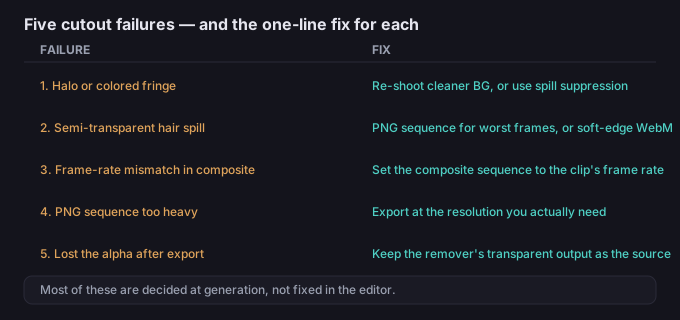
5 failure modes (and the fixes)
| Failure | Why it happens | Fix |
|---|---|---|
| Halo or colored fringe | Background color bled onto the subject's edge | Re-shoot on a cleaner backdrop, or use a remover with spill suppression |
| Semi-transparent spill on hair | Fine, moving edges are hard to segment | Export a PNG sequence and clean the worst frames, or accept WebM and add a soft edge |
| Frame-rate mismatch in the composite | The transparent file's rate differs from the sequence | Set the composite sequence to the clip's frame rate before importing |
| PNG sequence too heavy | Hundreds of full-res frames | Export at the resolution you actually need, not master quality |
| Lost the alpha after export | Re-exported through a tool that dropped the channel | Keep the remover's transparent output as the source; never re-encode through a flat format |
What to do when the motion is right but the background is wrong
A good Kling clip is rarely the final post — it's the best part of it. Once the motion reads, isolate the subject with a transparent export (WebM for speed, PNG sequence for control), then place it over the background you actually want. Because the remover on this site runs in your browser, your clip is processed locally and never uploaded, which keeps the whole pipeline private.
Common questions
Can Kling export a transparent video directly?
No. It outputs a finished MP4 with a background. Transparency is added afterwards by keying or by a background remover.
Transparent WebM or PNG sequence — which should I pick?
WebM for a fast, single-file result good enough for most social composites; PNG sequence when you need per-frame control, VFX, or the cleanest edges.
Do I need a green screen to get a clean cutout?
No — a remover can isolate the subject from any background. Green just makes the key more predictable if you control the shoot.
Is my clip uploaded when I remove the background?
Not on this site. The background remover runs in your browser, so the media stays on your device.