Drop an image or video here, or
Tip: click anywhere on the preview to sample that color as the key color.
A transparent background means the backdrop of your image or video has no color at all — it's see-through, so you can drop your subject onto any scene. Technically it's an alpha channel: pixels store "how visible am I?" instead of a fixed color. Our tool builds that alpha channel by keying out a solid backdrop color.

How to make a transparent background
- Open your file. Drop an image or video above, or click browse. The preview updates as soon as it loads.
- Pick the key color and threshold. Keep the green or blue preset (or click the preview to sample any color), then raise or lower Similarity threshold until the backdrop vanishes but your subject stays sharp. Edge shrink eats the colored fringe; Edge smoothing softens the matte.
- Export. Images save as a transparent PNG. Video saves as a transparent WebM or a PNG-sequence zip.
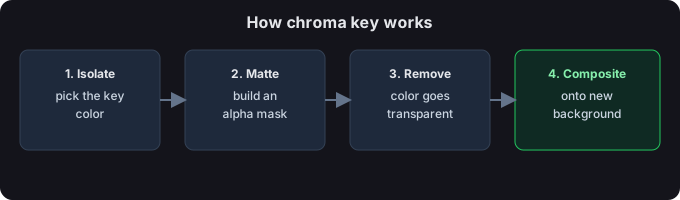
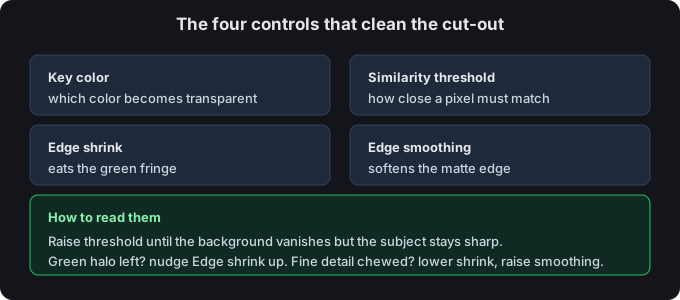
Image or video?
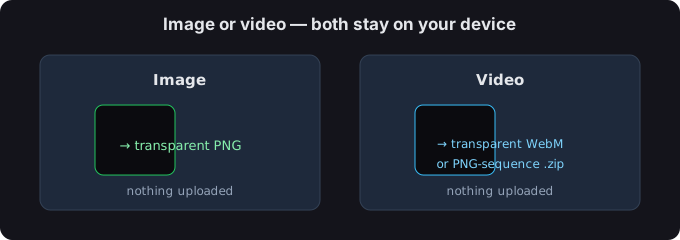
Still image? You get a transparent PNG. Video? You get a transparent WebM or a PNG-sequence zip. Both are processed on your device — nothing is uploaded.
Tips for a clean edge
- If a colored halo remains, nudge Edge shrink up by 1–2 px.
- If hair or fine detail gets chewed away, lower Edge shrink and raise Edge smoothing.
- You can click the preview to sample any color as the key — handy for uneven or lit backdrops.

Common questions
What is a transparent background?
It's a backdrop with no fixed color — the transparent pixels let whatever is behind them show through. It's the standard way to place a cut-out subject onto a new scene, and it's what PNG and WebM files support natively (unlike JPG, which always has a solid background).
Are my files uploaded?
No. Everything runs in your browser; we never receive your media.
Which formats keep the transparency?
PNG for images and WebM or a PNG-sequence zip for video both preserve the transparent background. JPG cannot — it flattens to a solid color, so export as PNG to keep the cut-out.
Does transparent WebM keep its transparency?
Yes. A transparent WebM exported here keeps its alpha channel in a browser and in any WebM/VP9-capable player. We verified this by rendering the exported file on a magenta background — the background shows through, so the transparency is intact.
One caveat we also measured: command-line decoders such as ffmpeg drop the alpha by default. Decoding our export with ffmpeg -i file.webm frame.png produced an RGB frame with no alpha channel and a black background. You can tell ffmpeg to keep it (for example -pix_fmt yuva420p), but for reliable transparency, play the file in a browser or a WebM/VP9-capable player.