Drop a green-screen image or video here, or
Tip: click anywhere on the preview to sample that color as the key color.
A green screen is a solid-color backdrop — usually bright green or blue — that you shoot your subject against so it can be replaced later. "Removing" it means turning that color transparent, leaving your subject on a clean cut-out you can drop onto any background.
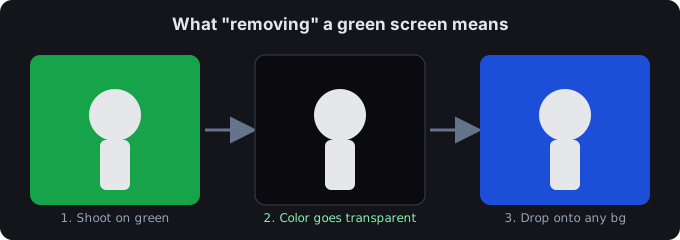
How to remove a green screen
- Open your file. Drop a green-screen image or video above, or click browse. The preview updates as soon as it loads.
- Pick the key color and threshold. Keep the green preset, then raise or lower Similarity threshold until the background vanishes but your subject stays sharp. Edge shrink eats the green fringe; Edge smoothing softens the matte.
- Export. Images save as a transparent PNG. Video saves as a transparent WebM or a PNG-sequence zip.
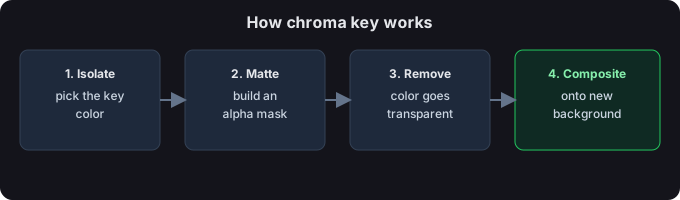
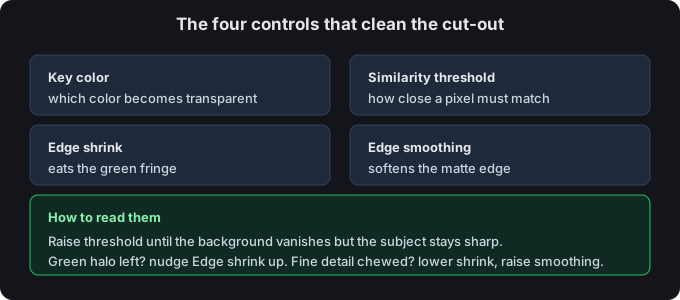
Image or video?
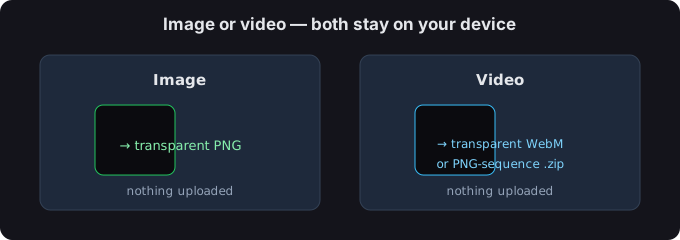
Still image? You get a transparent PNG. Video? You get a transparent WebM or a PNG sequence. Both are processed on your device — nothing is uploaded.
Tips for a clean edge
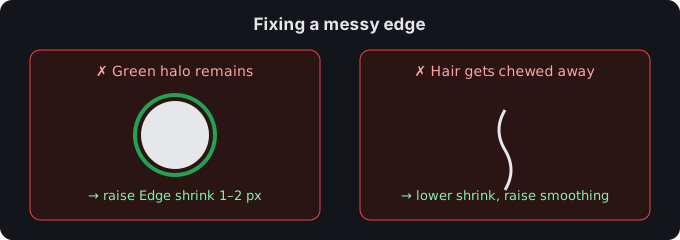
- If a green halo remains, nudge Edge shrink up by 1–2 px.
- If hair or fine detail gets chewed away, lower Edge shrink and raise Edge smoothing.
- You can click the preview to sample any color as the key — handy for uneven or lit backdrops.
Common questions
How to use a green screen
Shoot your subject in front of a solid green backdrop, drop the file above, and the tool turns that color transparent — leaving your subject on a clean cut-out with no editing app required. Shooting for TikTok? The app has its own green screen effect — see green screen for TikTok for the in-app steps and when a remover is the right call instead.
Are my files uploaded?
No. Everything runs in your browser; we never receive your media.
What if the edge still has a green tint?
Our tool builds the transparency mask but does not desaturate semi-transparent pixels, so a very faint tint can linger on soft edges. Raising Edge shrink is the quickest fix.