Drop a green-screen video here, or
Tip: click anywhere on the preview to sample that color as the key color.
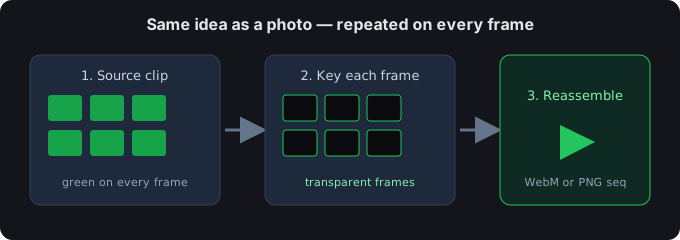
Taking a green screen out of video is the same idea as with a photo, just repeated on every frame. This tool processes each frame in your browser and exports either a transparent WebM (if your browser supports alpha video) or a PNG-sequence zip you can re-assemble in any editor.
Steps
- Drop your green-screen clip above (the Video tab is already selected).
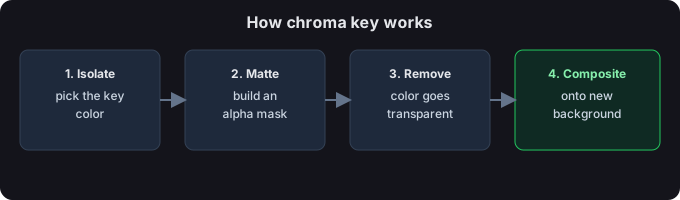
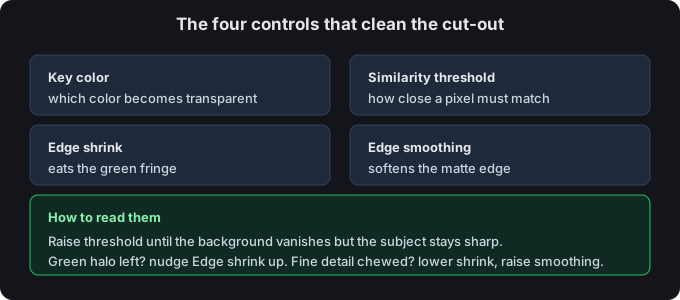
- Keep the green key color and adjust Similarity threshold so the background goes transparent while your subject stays.
- Pick an export format: Transparent WebM for a single file, or PNG sequence (.zip) for maximum compatibility.
- Hit Process, then Download.
Transparent WebM vs PNG sequence
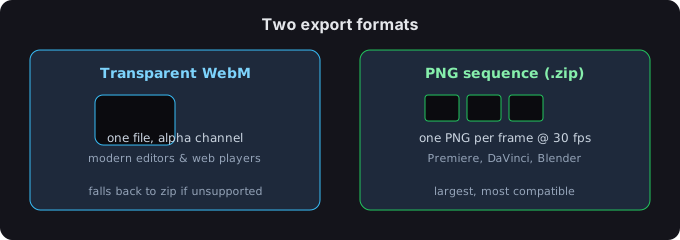
- Transparent WebM — one small file with an alpha channel; great for modern editors and web players. Not every browser can record it, so the tool falls back to the zip automatically if needed.
- PNG sequence (.zip) — one PNG per frame at 30 fps. Larger, but opens in any editor (Premiere, DaVinci, Blender) with transparency intact.
Tips
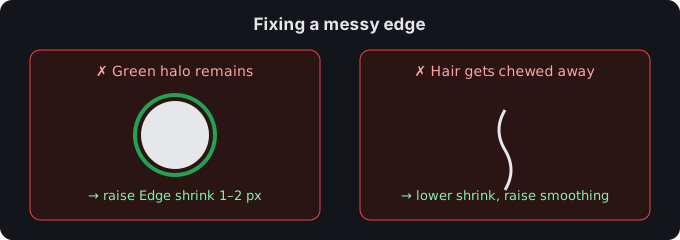
- Spill on moving hair? A touch more Edge shrink cleans the fringe without hurting motion.
- Busy backgrounds between frames? Keep Edge smoothing low to avoid a shimmering edge.