Drop a green-screen image or video here, or
Tip: click anywhere on the preview to sample that color as the key color.
This green screen tutorial takes you from a bare backdrop to a transparent cut-out — for a photo or a video. You'll set up the screen, then key the color out with the free tool on this page.
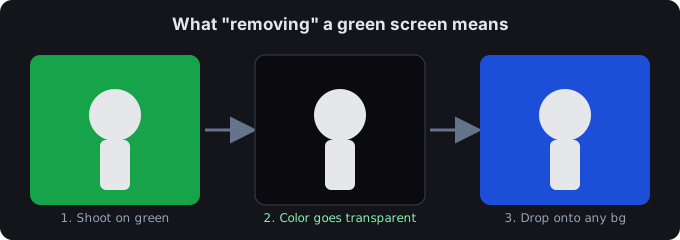
How to use a green screen
- Hang the backdrop. Use a matte green or blue fabric, stretched flat with no wrinkles or seams — those create shadows the keyer can't remove.
- Light it evenly. Soft front-fill light, no harsh spots. An unevenly lit backdrop is the most common cause of ragged edges.
- Step away from it. Stand 3–6 ft from the backdrop so your shadow doesn't fall on it, and fill the frame with solid color.
- Frame your shot. Keep your subject clear of the colored area so only the backdrop gets keyed.
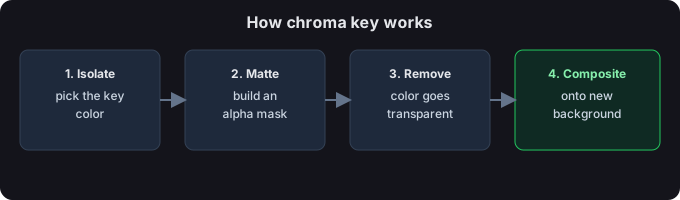
How to remove a green screen
- Open your file. Drop a green-screen image or video above, or click browse. The preview updates as soon as it loads.
- Pick the key color. Keep the green preset (or click the preview to sample any color), then raise or lower Similarity threshold until the backdrop vanishes but your subject stays sharp.
- Clean the edge. Edge shrink eats the colored fringe; Edge smoothing softens the matte.
- Export. Images save as a transparent PNG. Video saves as a transparent WebM or a PNG-sequence zip.
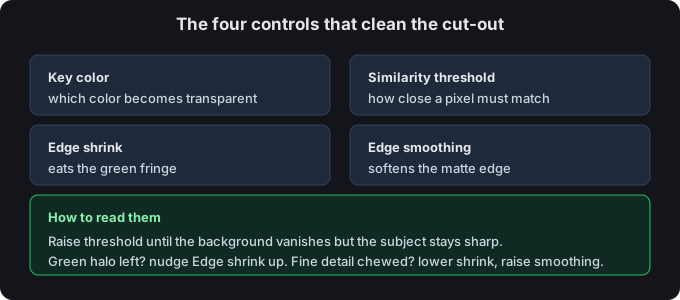
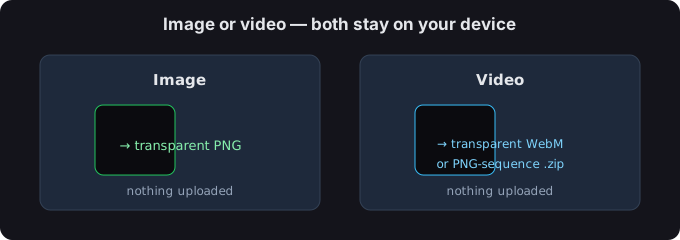
Photo vs video
Still image? You get a transparent PNG. Video? You get a transparent WebM or a PNG-sequence zip. Both are processed on your device — nothing is uploaded.
Troubleshooting
- Uneven lighting. Relight the backdrop and raise Similarity threshold gradually until dark and light areas both disappear.
- Color spill on your subject. Nudge Edge shrink up, or switch to a blue backdrop if your subject wears green.
- Shadows on the backdrop. Move the subject farther away and add fill light so the backdrop stays one flat color.
Tips for a clean edge
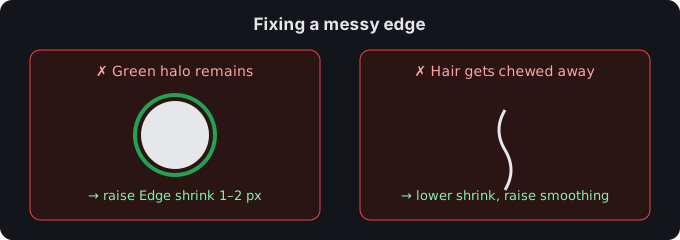
- If a green halo remains, nudge Edge shrink up by 1–2 px.
- If hair or fine detail gets chewed away, lower Edge shrink and raise Edge smoothing.
- You can click the preview to sample any color as the key — handy for uneven or lit backdrops.
Common questions
How do I use a green screen?
Hang a matte, evenly lit backdrop, stand a few feet in front of it, then key the color out with a tool like the one above and export a transparent cut-out.
Why is my green screen flickering on camera?
Flicker usually comes from lighting on AC power (50/60 Hz) or uneven brightness across the backdrop. Fix the lighting first — a steady, flat backdrop keys far more cleanly than any post-processing.
Are my files uploaded?
No. Everything runs in your browser; we never receive your media.