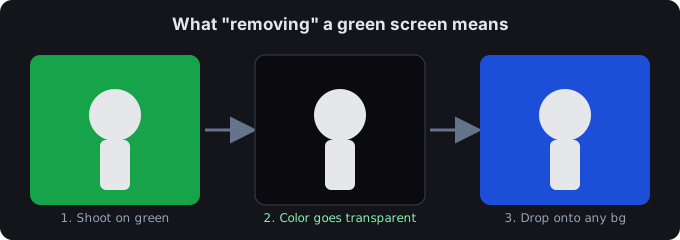
Drop a green-screen image or video here, or
Tip: click anywhere on the preview to sample that color as the key color.
Want to pull a green screen in Photoshop? Below are the standard methods for a still image and for video. If you'd rather skip the subscription, the free tool above does the same job in your browser — no install, no cost.
Photoshop: remove green screen from an image
- Open the photo and duplicate the layer (so you keep an untouched original).
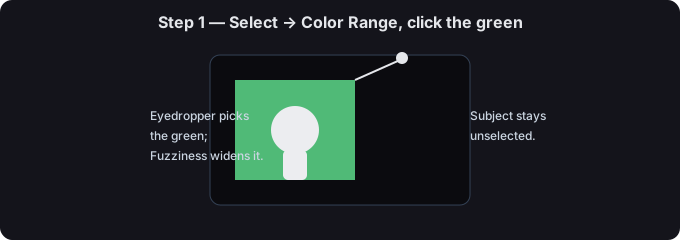
- Go to Select → Color Range. With the eyedropper, click the green background. Raise Fuzziness until the green is mostly selected (your subject should stay unselected).
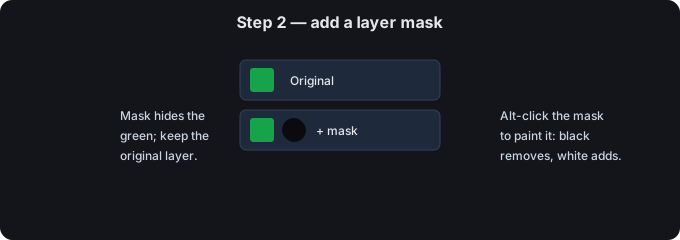
- Click OK, then add a layer mask (the mask button at the bottom of the Layers panel). The green is now hidden.
- Clean the edge: hold Alt/Option and click the mask to paint it; use a soft black brush to remove stray green and white to bring back lost detail.
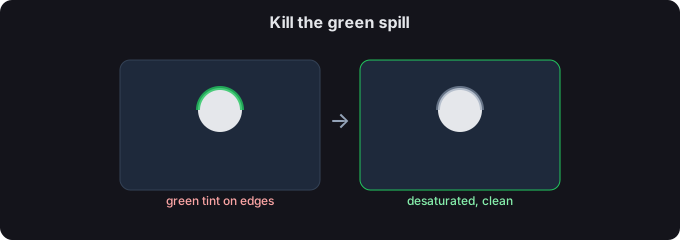
- For color spill, add Image → Adjustments → Replace Color or a Hue/Saturation layer clipped to the mask to desaturate leftover green on hair and edges.
- Export as PNG to keep the transparency.
Photoshop: remove green screen from video
- In the Timeline, place your clip on a layer above a background.
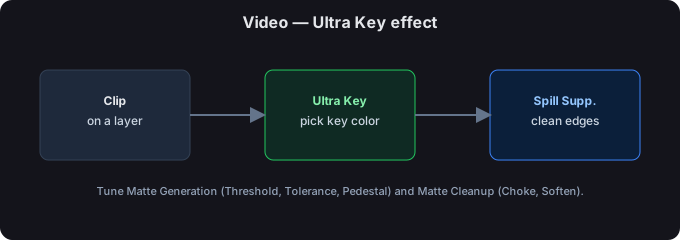
- Open Window → Effects, find Video → Keying → Ultra Key, and drag it onto the clip.
- In the Effect Controls panel, use the Key Color eyedropper to pick the green. Tune Matte Generation (Threshold, Tolerance, Pedestal) and Matte Cleanup (Choke, Soften) for a clean edge.
- Add Spill Suppression to kill green reflections on your subject.
- Render or export the comp with an alpha channel if you need transparency.
Prefer not to use Photoshop?
- The tool at the top of this page does chroma key without any software — open a file, pick the key color, export a transparent PNG (or WebM / PNG sequence for video).
- It runs locally, so your footage never leaves your device, and there's no per-month fee.
- For a one-off cut-out, it's usually faster than launching Photoshop at all.