How to use the green screen effect on TikTok
TikTok's green screen effect swaps your real background for a photo or video you pick from your device — no physical green screen, no editing app. Here are TikTok's own instructions, verbatim in steps:
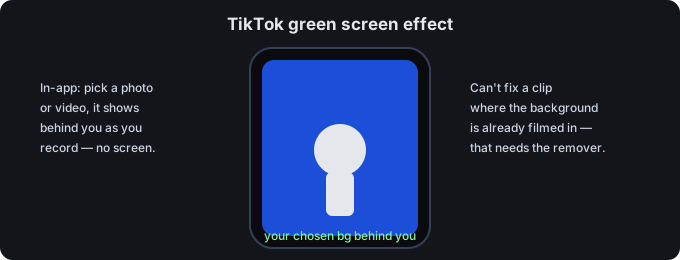
- Open the app and tap “+” to create a video.
- Tap “Effects”, and under the “Trending” section, find the #greenscreen icon.
- Choose any photo from your phone library to use as your background, then tap record.
Source: TikTok (official) — newsroom.tiktok.com — How to use the green screen effect on TikTok.
Photo background or video background?
TikTok's official 2019 note (quoted above) documents the photo version — you pick one image as your background. TikTok also ships a separate “Green Screen Video” effect that uses a clip from your camera roll as a moving background; creator guides describe finding it the same way (Effects search, look for “Green Screen Video”) and note the clip plays behind you as you record. We're citing TikTok's official note for the steps above, and these guides for the video variant — the official note does not describe the video effect. Creator-guide sources: Hollyland, TikHype.
Already shot the clip? Key the background out here
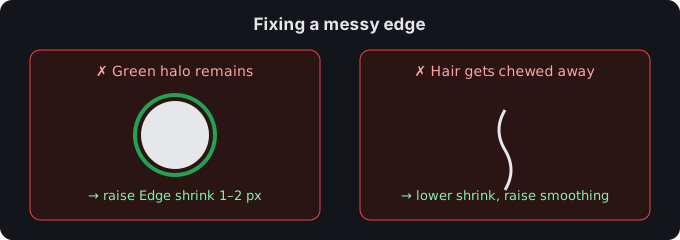
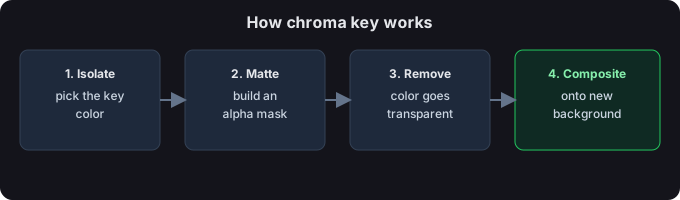
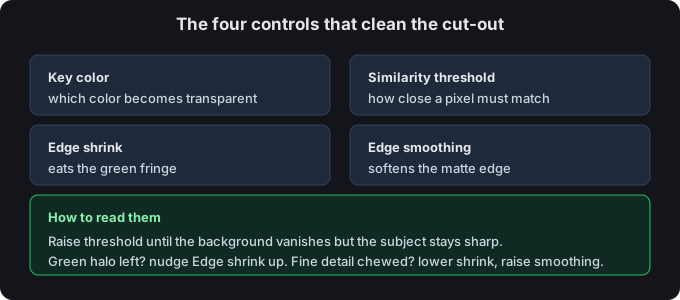
If you recorded against a real green or blue screen — or any solid backdrop — and want it gone, you don't need the in-app effect. Drop the file into the green screen remover (or open the green screen app on your phone), keep the green (or blue) preset, nudge the similarity until the backdrop vanishes, and export:
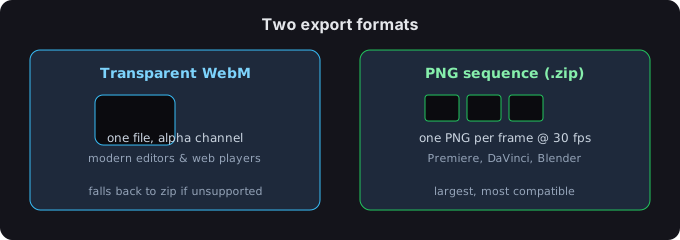
- Image → a transparent PNG.
- Video → a transparent WebM, or a PNG-sequence zip.
Everything runs in your browser — nothing is uploaded, no signup. It handles both green and blue backdrops. Need a clean solid color to shoot against in the first place? Grab one from the green screen background images page.
Tips for a clean result
- You don't need a real green screen. TikTok's official note points out you can use the effect “without an actual green screen” — a plain, well-lit wall behind you is enough for the in-app effect to tell you apart from the background. Source: TikTok (official).
- Avoid clothing that matches your background. The effect separates you by color and contrast, so a shirt the same color as your backdrop can get keyed out with the floor.
- Light your face, not your back. Even, front-facing light gives the cleanest edge; a cluttered or dark background behind you makes the cut-out ragged.
Common questions
Do I need a real green screen for the TikTok effect?
No. TikTok's official note says you can use the green screen effect “without an actual green screen” — the effect digitally separates you from whatever is behind you. A plain wall works. Source: TikTok (official).
Can the in-app effect fix a video where the background is already recorded?
No. The effect sets a background as you record; it can't key out a real background that's already in the footage. For that, use the remover on the file you already shot.
What if the green screen effect doesn't show up?
Creator guides consistently say to update the TikTok app to the latest version — older builds may not include the full effects library. If it's still missing, clear the app cache and restart. Sources: Hollyland, MiniTool.
Green or blue for TikTok?
Most shoots: green. Use blue if your subject is green (foliage, a green costume) so it isn't pulled out with the background. Full reasoning on the green screen vs blue screen page.
Where this fits
Made a clip against a real backdrop and need it gone? Use the green screen remover or open the green screen app on your phone. Streaming on Twitch or Zoom instead? See green screen for streaming. Picking the backdrop color? See green screen vs blue screen.