Drop a green-screen clip or image here, or
Tip: click anywhere on the preview to sample that color as the key color.
A green screen turns the plain colored backdrop behind you into anything — a branded scene, a gameplay overlay, or a clean studio look. Streamers reach for it because their broadcasting software can swap the background in real time, or because they later cut the subject out with a tool like ours.
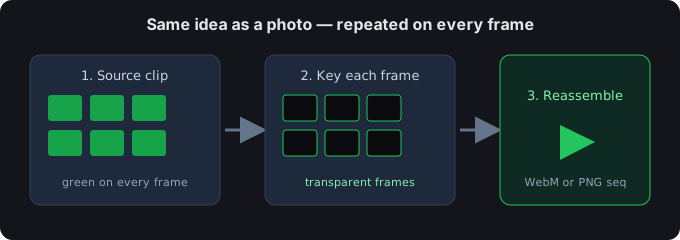
How to set up a green screen for streaming
- Pick a backdrop. Use a matte green or blue fabric — no wrinkles, shine, or seams, since those create shadows the keyer can't remove.
- Light it evenly. Soft front-fill light, no harsh spots. An unevenly lit backdrop is the #1 cause of ragged edges.
- Keep your distance. Stand 3–6 ft from the backdrop so your shadow doesn't fall on it, and fill the frame with solid color.
- Enable the key in software. Turn on the virtual background or chroma key, then pick the backdrop color your software should drop.
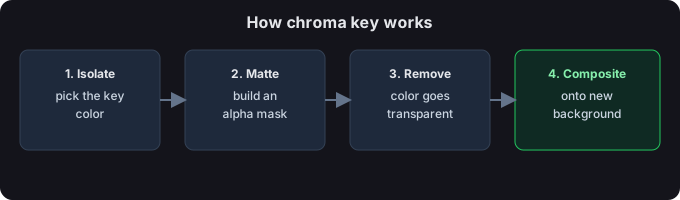
Green screen in Zoom
Open Settings → Background & Effects, check Green screen if you're using a physical backdrop, and click the color swatch to match your fabric. Zoom then keys it out and shows your chosen virtual background behind you.
Green screen in OBS
Right-click your video source, choose Filters, add a Chroma Key (or Color Key) filter, and set the key color to your backdrop. Raise Similarity until the background disappears, then tidy the edge with Smoothness.
Green screen on Twitch
On Twitch the setup is the same idea as OBS above — just inside your broadcasting software. OBS and Streamlabs use the Chroma Key filter described above; Twitch Studio also offers a chroma key you enable on your camera layer. Either way the goal is a solid, evenly lit backdrop the software can drop, then your scene shows behind you. The remover above still handles a recorded clip.
Recording for TikTok instead? See our green screen for TikTok guide for the in-app effect and how to key out a clip you already shot.
Remove the green screen — no software needed
For a recording or still, skip the live setup: drop the file above, keep the green preset, adjust Similarity threshold, and export a transparent cut-out. Images become a transparent PNG; video becomes a transparent WebM or PNG-sequence zip. Everything runs on your device.
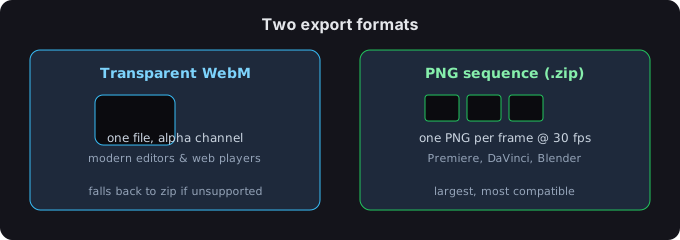
Image or video?
Still image? You get a transparent PNG. Video? You get a transparent WebM or a PNG-sequence zip. Both are processed on your device — nothing is uploaded.
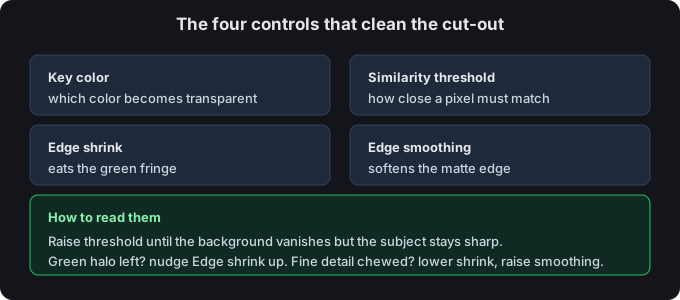
Tips for a clean edge
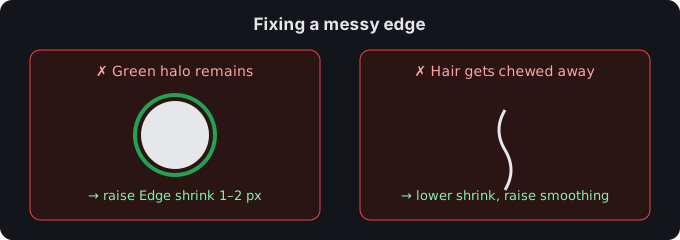
- If a green halo remains, nudge Edge shrink up by 1–2 px.
- If hair or fine detail gets chewed away, lower Edge shrink and raise Edge smoothing.
- You can click the preview to sample any color as the key — handy for uneven or lit backdrops.
Common questions
Do I need a green screen for a Zoom virtual background?
No — Zoom can segment you without one. But a real green screen gives a much cleaner edge and works in low light, so it's worth it if you stream often.
Are my files uploaded?
No. Everything runs in your browser; we never receive your media.
What color is best for streaming?
Green is the most common choice — cameras are less sensitive to green, so there's less color spill onto skin. Use blue if your subject wears green on camera.