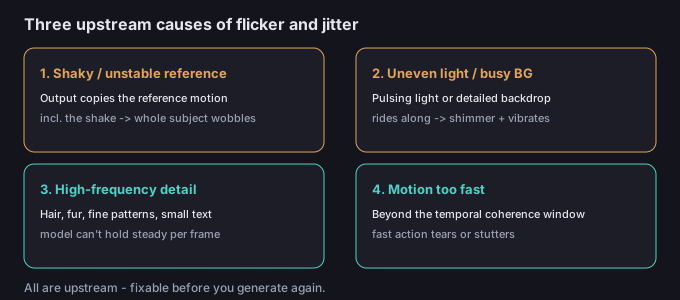
Motion Control builds each output by copying the motion from your reference clip onto your character image. The reference is the source of truth for how things move — so if the reference is shaky, the result is shaky. Lighting, background, and fine detail ride along for free too. When the clip flickers or jitters, that is almost always a signal about what you fed in, which means it's also something you can fix before you spend another generation.
Why frames flicker and jitter
A generative video model re-estimates every frame instead of locking one steady render and sliding it forward. That's what lets motion control transfer a new performance onto a new character — but it also means small inconsistencies between frames (a shifting highlight, a hair edge that lands a pixel off, a wobble in the tracked pose) get amplified into visible shimmer or jitter. The model isn't "broken"; it's faithfully reproducing instability that was already in the inputs, or struggling with detail it can't resolve from frame to frame.
Symptom → cause → fix
| Symptom | Likely cause | Fix |
|---|---|---|
| Whole subject wobbles / swims | Shaky or unsteady reference | Stabilize the camera; re-shoot a smoother reference |
| Lighting pulses or brightens/dims | Uneven lighting in the source | Use flat, even light; avoid mixed sources |
| Edges of hair / fur shimmer | High-frequency, thin detail | Give the subject clean separation from the background |
| Busy background vibrates | Patterned or detailed background | Shoot on a plain background; replace it later |
| Fast motion tears or stutters | Motion beyond the coherence window | Slow the reference; use match image for camera moves |
5-step fix workflow
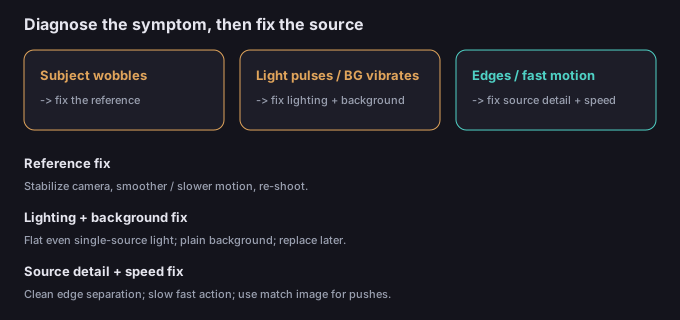
- Name the flicker type. Is the whole subject wobbling (jitter), is the light pulsing, are edges shimmering, or is the background vibrating? The fix depends on which.
- Check the reference first. Play it back. Is the camera steady? Is the motion smooth? A shaky reference is the most common cause of jitter, and it passes straight through.
- Check the lighting and background. Even, single-source light and a plain background remove most shimmer without touching the model.
- Improve the source separation. Frame the subject so hair, fur, and edges have empty space around them; thin detail against a busy background is what flickers.
- Regenerate with one change at a time so you can see which fix actually removed the flicker.
5 failure modes (and the fixes)
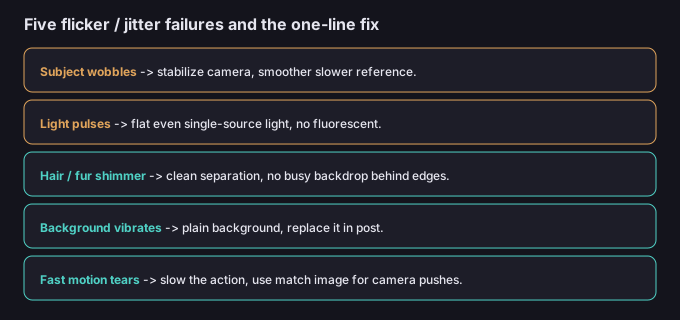
| Failure | Why it happens | Fix |
|---|---|---|
| Subject wobbles / swims | Reference camera or body is unsteady | Stabilize camera; smoother, slower reference |
| Light pulses | Mixed or flickering light sources | Flat even light; single source; no fluorescent |
| Hair / fur edges shimmer | Thin detail the model can't hold | Clean separation; avoid busy backdrop behind edges |
| Background vibrates | Patterned or high-detail background | Plain background; replace it in post |
| Fast motion tears | Motion beyond coherence window | Slow the action; use match image for camera pushes |
What to do about a busy background
Sometimes the subject is fine and only the background flickers — a patterned wall, a detailed room, or repeating lines that the model can't settle. The cheapest fix is to shoot the reference on a plain background and replace the environment later. Once you have a clip whose motion you like, you can drop or swap the background with the browser tool on this site: it processes the clip in-device, so your media never has to be uploaded to a server, and a clean subject on a simple background is exactly what gives the background removal its cleanest edges.
Common questions
Is the model broken if my clip flickers?
Usually not. Flicker and jitter are most often inherited from a shaky reference, uneven light, or detail the model can't hold — all fixable upstream.
Should I stabilize the output clip instead?
You can smooth shaky footage in an editor, but if the motion itself is wrong, stabilization won't help. Fix the reference so the motion is right from the start.
Does a plain background really matter?
Yes. A busy or patterned background is the easiest thing for the model to flicker; a plain one removes most background shimmer and also gives you a clean mask for background replacement later.
Is my clip uploaded when I remove the background later?
No. The background tools on this site run in your browser, so the media stays on your device.