When people ask to "batch" Motion Control, they usually imagine selecting ten moves and hitting generate. That isn't how it works — the unit of generation is one reference plus one character image. So "batch production" is a planning job, not a button. The win is organizing the work so you're not re-deciding everything per clip and so the outputs are easy to tell apart later.
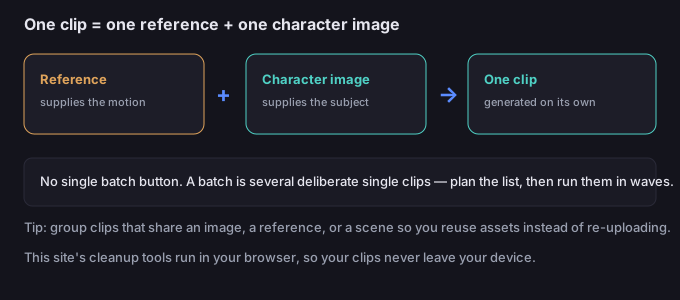
Why there is no single batch button
Motion Control learns the motion from the reference and the identity from the character image, then produces one clip. There's no native mode that takes a list of references and fires them all with one click in a guaranteed order. That's fine — it just means you orchestrate the list yourself. The good news: because each clip is independent, you can parallelize mentally (group, queue, generate) even if each generation is one at a time.
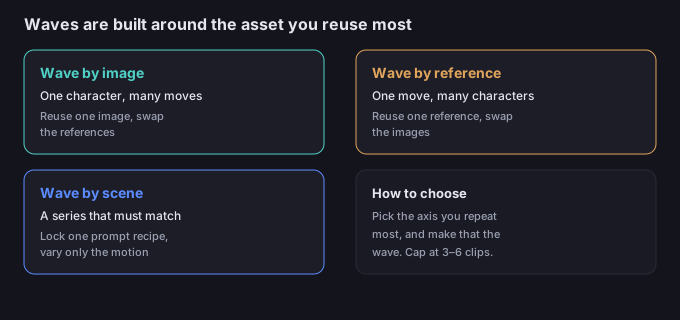
How to group clips
Group by what they share, so you reuse assets instead of re-uploading:
| Group by | When | Reuse |
|---|---|---|
| Same character image | A character doing many different moves | One image, many references |
| Same reference | One move applied to several characters | One reference, many images |
| Same scene / prompt recipe | A series that must look consistent | One prompt, varied motion |
Rule of thumb: pick the axis you'll repeat most and make that the wave. For a character reel, wave by character image. For a "same dance, different people" set, wave by reference.
A batch planning table
Before generating, sketch the waves. Example for a 6-clip character reel:
| Wave | Shares | Clips | Notes |
|---|---|---|---|
| 1 | Character image A | Walk, wave, spin | One image, three references |
| 2 | Character image A | Dance, sit, jump | Continue same image, new references |
| 3 | Scene recipe X | All six, recolored | Reuse prompts for a consistent look |
5-step batch workflow
- List the clips. Write every clip you need as a one-line spec (character, move, scene).
- Group into waves by the asset you reuse most (image, reference, or scene).
- Lock the prompt recipe for any series that must look alike; vary only the motion.
- Generate wave by wave, reusing the shared image/reference instead of re-uploading.
- Name and store each output immediately (e.g.
A_walk_street,A_spin_studio) so the edit doesn't become a guessing game.
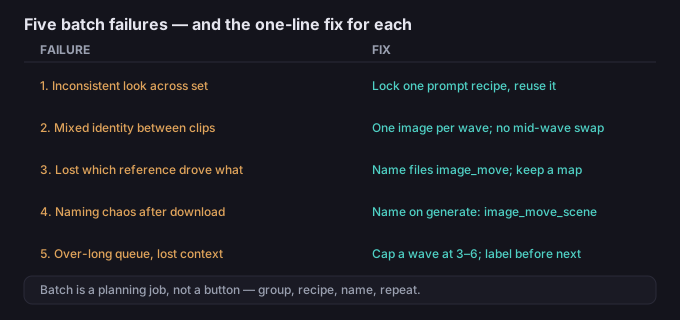
5 failure modes (and the fixes)
| Failure | Why it happens | Fix |
|---|---|---|
| Inconsistent look across the set | Different prompts per clip | Save one prompt recipe and reuse it for the whole wave |
| Mixed identity between clips | Accidentally swapped character images | Generate one image per wave; don't switch mid-wave |
| Reference confusion | Lost track of which reference drove which clip | Name files by image+move; keep a one-line map |
| Naming chaos after download | Generic filenames | Name on generate: image_move_scene |
| Over-long queue, lost context | Too many clips in one sitting | Cap a wave at 3–6 clips; finish and label before the next |
What to do when the clips are all generated
Once the waves are done you have a clean folder of named clips, each a finished MP4 with whatever background you shot. The assembly is editorial: trim the dead frames, drop or replace backgrounds (the browser tool on this site keeps your clips on-device), match color across the set, and export. Because you planned the naming and the prompt recipe up front, the edit is fast instead of forensic.
Common questions
Is there a batch button in Motion Control?
No. Each clip is one reference plus one character image. "Batch" means planning and running several single clips in waves.
How do I keep a series looking consistent?
Lock one prompt recipe (scene + lighting + style) and reuse it for every clip; only the reference changes.
What's the best way to organize many clips?
Group by the asset you reuse most, generate in waves of 3–6, and name each file as you go.
Is my clip uploaded when I edit it later?
No. The background tools on this site run in your browser, so the media stays on your device.