The short answer: you do not need a green screen. A modern in-browser remover can separate the subject from the background using AI matting — it figures out what's "the person" and what's "the room" without you ever hanging a colored sheet. You drop in any clip, the backdrop turns transparent, and you get a cut-out video ready to drop on a new scene. No backdrop, no upload, no account.
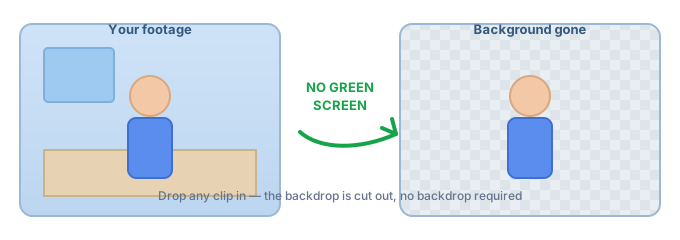
Do you actually need a green screen?
Most people reach for a green screen out of habit, not necessity. A green (or blue) backdrop helps when the software has to guess the edge — a solid, high-contrast color is easy to key out. But "easy to key" and "required" are different things. If you didn't shoot on green, you have two realistic options:
- Re-shoot on green. Best when you control the set and want the cleanest possible edge on busy, fast, or transparent objects (mesh, hair, glass).
- Skip the reshoot and let AI matting do it. Best when the footage already exists, the background is a real place (a room, a street, a desk), and you just want the subject cut out. This is the "without a green screen" route.
The honest rule: green wins on edge precision for hard subjects; AI matting wins on convenience and on footage you can't reshoot. For the everyday "make my background disappear" job, you almost never need to hang a sheet.
How background removal works without a green screen
Instead of looking for one color to delete, the model looks at the whole frame and predicts a matte — a mask that says "foreground here, background there" for every pixel. That's why it can handle a cluttered real-world background where a chroma key would fail. Three things decide how clean the result is:
- Subject separation. A person standing apart from the wall is trivial; a person leaning on the same-colored wall is harder.
- Edge softness. Hair, fur, and motion blur are where matting shows its work — good models keep the fuzz, bad ones fringe it with color spill.
- Motion. Video is many frames; the matte has to stay stable frame to frame or the edge "boils."
Green-screen vs no-green-screen: which to pick
| Factor | No green screen (AI matting) | Green screen |
|---|---|---|
| Setup needed | None — use existing footage | Sheet, lights, space to avoid shadows |
| Best for | Real backgrounds, already-shot clips | Hard edges, hair, glass, fast motion |
| Edge quality on easy subjects | Excellent | Excellent |
| Edge quality on messy subjects | Good (varies by model) | Best, if lit well |
| Privacy / upload | Can run fully in-browser, no upload | Same — depends on the tool, not the method |
Why do it in the browser
The "without a green screen" trick is offered by cloud tools too, but the browser version has one structural advantage: the matte is built with JavaScript/WebGL right on the page, so your clip never travels to a server. No upload step on a 200 MB file, no account to create, no "free tier" counter nudging you to paid. For a single job — cut the background, download the transparent WebM — that's the whole point.
Common questions
Can you really remove a video background without a green screen?
Yes. AI matting separates subject from background per-pixel, so a solid colored backdrop is no longer a requirement. Drop in any clip and the background goes transparent.
What about hair and edges?
Hair and fuzzy edges are the hard part for any method. Strong matting models keep the fuzz and avoid the colored fringe (spill) that cheap keying leaves; on very messy edges a well-lit green screen still edges it out. For normal talking-head and product clips, no-green matting is clean.
Is it free?
The in-browser route is free to run as many times as you like — there's no server cost to pass on, so there's no paywall to hide it behind. Cloud "remove background" tools often bill per clip or by subscription; that's a tooling choice, not a property of the method.
Do I have to upload my video anywhere?
Not with an in-browser remover. The frames are processed in the tab, so the file never leaves your device — which also means no upload wait on large videos.
What if I already shot on green?
Then you're in the best case — use the green-screen route for the sharpest edge. Either way you end up with the same transparent result; pick the path that matches your footage.