Kling Motion Control is a one-image, one-video pipeline: the character image supplies identity and the reference video supplies motion. That is why you cannot just type "add a second person" and expect two clean characters. The model has one identity slot and one motion slot per render. The good news is that two-character shots are a solved problem — you just pick the right path for the shot you want. This guide covers both, with a hard look at where each one breaks.
Why there is no native two-character mode
The pipeline is matched one-to-one on purpose. It copies the motion of the reference onto the single subject in the character image. A second, fully independent identity would need a second identity slot, a second motion slot, and a way to keep the two from blending frame to frame. None of that is exposed as a setting. So every "two people" result comes from one of two workarounds:
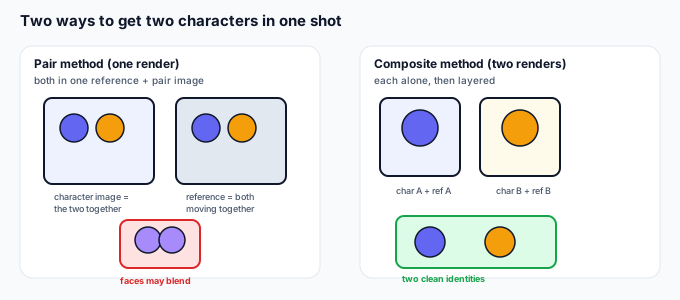
- Pair method. You film (or assemble) a reference clip that already shows both people moving. You use a character image that is a picture of the two of them together. One render, two bodies — but the model reads them as one blended subject.
- Composite method. You render character A with reference A and character B with reference B as two separate clips, then stack them in an editor. Each identity stays independent because it was never merged.
Method A — the pair in one reference
This is the quick route. You need a reference video where both people appear and perform the move you want, and a character image showing both of them in roughly the same pose and framing. Kling copies the combined motion onto the combined subject.
Where it actually works: simple, synchronized moves where the two bodies stay apart and similar — a couple walking, two dancers doing the same step, two mascots bouncing in place. Where it fails: any shot where the two faces need to stay distinct, where one occludes the other, or where they do different things. The model does not know there are two identities; it treats the pair as one shape and "averages" them.
Method B — generate separately, then composite
This is the route that keeps two clean faces. You run two independent Motion Control renders — one per character, each with its own character image and its own reference — then combine them. The catch is overlap: if the two characters cross in front of each other, you are layering two full clips, so you need clean edges. That is exactly where a transparent export earns its keep.
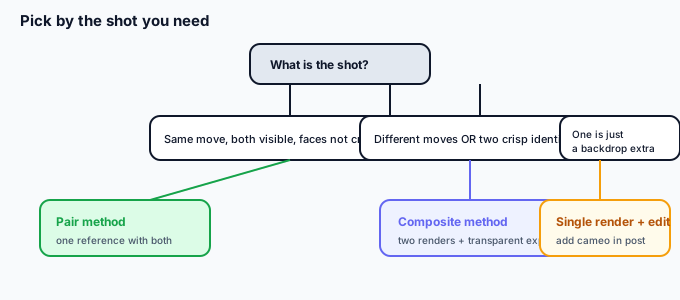
Which path should you pick? (decision table)
| Your shot | Best path | Why |
|---|---|---|
| Two people doing the same move, faces not critical | Pair in one reference | Fast, one render, motion already matched |
| Two distinct faces must stay recognizable | Composite (two renders) | Each identity rendered alone, no blending |
| Two people doing different motions | Composite (two renders) | One reference can't carry two motions |
| One main character + a second cameo in back | Single render + edit | Put the cameo in during compositing, not in Kling |
| Group of three or more | Composite or staged pair | Multi-body blending gets worse past two |
| Characters must overlap/cross bodies | Composite + transparent export | Needs clean alpha edges to layer believably |
5-step compositing workflow (the clean two-character method)
- Render each character on its own. Separate character image, separate reference, separate generation. Keep the camera angle and distance close to what the final shot needs so the two clips match when stacked.
- Export each as transparent WebM or a PNG-sequence zip. A clip with a real alpha channel lets you layer one character over the other without a hard rectangle. Both run on your device here — nothing is uploaded.
- Place them on a shared background. Use the same backdrop (or a green screen you later key out) for both renders so the composite doesn't read as two different worlds. Match lighting direction.
- Line up the timing. Motion Control clips start where the reference starts. Trim both to the same in-point so the two characters move in sync in the final timeline.
- Fix overlaps with masks. Where one character crosses in front of the other, mask the front clip on that range. Because each has a clean alpha edge, the overlap looks like depth, not a cutout.
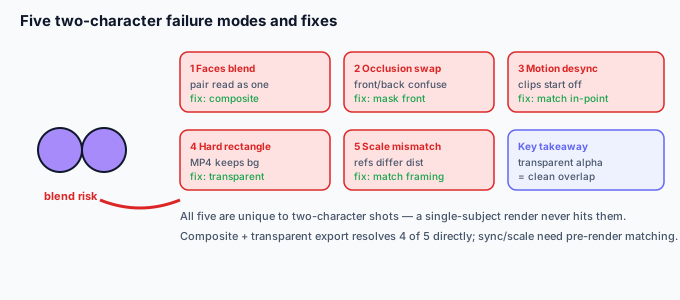
5 failure modes specific to two characters (and the fixes)
| Failure | Why it happens | Fix |
|---|---|---|
| Faces blend into one | Pair method reads two as one subject | Switch to composite method; render each face alone |
| One character swaps in front mid-clip | Occlusion confuses the single subject | Use separate transparent renders + mask the front one |
| Motions drift out of sync | Two clips start at different points | Trim both to the same in-point before stacking |
| Hard rectangle edge around a character | Composited a clip with a background | Re-export as transparent WebM / PNG-seq, not MP4 |
| One character looks bigger / wrong scale | Two references shot at different distances | Match camera distance and framing before rendering |
What to do when the motion is right but the background isn't
The composite method depends on clean edges, and the default Kling export is an MP4 that keeps the reference's backdrop. Once each character render looks right, open it in the tool on this site and export it as a transparent WebM or a PNG-sequence zip — both run in your browser, nothing is uploaded. That gives you two animated subjects with real alpha channels you can layer over one shared scene, which is the most reliable way to get two clean characters in one shot without the model blending their faces.
Common questions
Can Kling Motion Control do two characters in one click?
No. The pipeline is one character image and one reference video. Any two-character result uses the pair method or the composite method above.
Which method keeps faces the most recognizable?
The composite method. Rendering each character separately means the model never tries to average two identities into one shape.
Do I need a green screen for the pair method?
Not necessarily — the pair method copies the reference's own backdrop. But if you want to drop the pair onto a new scene, export transparent and composite, same as the composite method.
Are my files uploaded?
No. Anything you process with the background tool on this page runs in your browser; we never receive your media.