Kling Motion Control is a one-image, one-video pipeline: the character image supplies identity and the reference video supplies motion. When the "character" is a product or a plain object, that same pipeline still applies — the model just doesn't know it is looking at a product. It reads a silhouette, a fill color, and any marking details, then tries to keep those stable while copying the reference's movement. This guide covers what that means in practice: why the obvious "just rotate my bottle" request doesn't work the way people expect, and the two reference-clip methods that do.

How motion control treats an object
The model is not a 3D renderer. It is a video generator that maps the motion of the reference onto the subject in your image. For an object, that means:
- Identity = what the photo looks like. Silhouette, fill color, label, and surface pattern are what get preserved. A clear, well-lit product shot on a plain background makes the best character image.
- Motion = whatever the reference clip does. If the reference slowly rotates, the product slowly rotates. If it bobs, the product bobs. The model cannot add motion that isn't in the reference.
- No face, no limbs, no rules about "looking human." Objects are in some ways easier than people — there is no identity drift from a face, and no expectation of natural gait. The hard parts are different: rigid shapes, shiny surfaces, and unseen sides.
Why a single photo will not auto-rotate
This is the most common misconception. Motion Control transfers 2D motion; it does not reconstruct a 3D model of your product. From a front photo it has never seen the back of the box, the bottom of the bottle, or the other side of the label. If you ask it to "rotate," the only rotation it can copy is the one in your reference — and if the reference doesn't contain a rotation, there is nothing to copy. Where people get burned: they expect a turntable from one hero shot, get a product that barely shifts, and conclude the tool is broken. It isn't; the input was missing the motion.
Two ways to get a rotating product (and a third that fakes it)
You have three practical routes, and which you pick depends entirely on what reference footage you can produce:
- Real turntable reference. Put the actual product on a turntable (or any slow rotating surface), film one clean rotation, and use that as the reference. The product photo becomes the character image. This is the cleanest true-rotation result — the model copies a rotation it can actually see.
- Camera-orbit reference. No turntable? Walk the camera slowly around the product on a stable surface, keeping the product centered. Same idea: the reference contains the rotation, so the output rotates.
- Gentle-move fallback. If you can't film a rotation at all, settle for a slow push-in, a slight tilt, or a float — a motion the reference can honestly carry. It showcases the product without promising a 360° spin the model can't invent.

Which method should you pick? (decision table)
| Your goal | Best method | Why |
|---|---|---|
| True 360° product spin | Turntable or camera-orbit reference | Only a reference that contains the rotation can produce one |
| Slow showcase turn (under 180°) | Orbit reference, rotate only as far as filmed | Model guesses unseen sides, so cap it at what the clip shows |
| Hero shot with subtle life | Gentle push-in / float reference | No rotation needed; motion stays believable |
| Label must stay perfectly readable | Slow move + re-add text in post | Moving lettering blurs; model preserves silhouette, not crisp type |
| Shiny glass or metal product | Matte stand-in or soft light + orbit | Reflections flicker frame to frame on glossy surfaces |
| Product on a clean studio backdrop | Any method + transparent export | Default output keeps the reference's backdrop; export alpha and recompose |
5-step prep for an object reference
- Shoot the product clean first. Neutral background, even soft light, the whole product in frame. This photo is the character image, so its clarity sets the ceiling on the output.
- Match the lighting direction. The reference and the product photo should read as the same scene, or the model fights the mismatch and the surface shimmers.
- Rotate slowly and steadily. A smooth, slow turn gives the model a clean motion signal. Fast or jerky rotation is the top cause of wobble on rigid shapes.
- Keep the label facing the camera at the key moment. If the pack copy matters, time the rotation so the front faces the lens when you want it readable, then re-add fine print in post.
- Respect the 3–30s window. One clean rotation inside that range is plenty. Longer clips add nothing and raise the chance of drift.
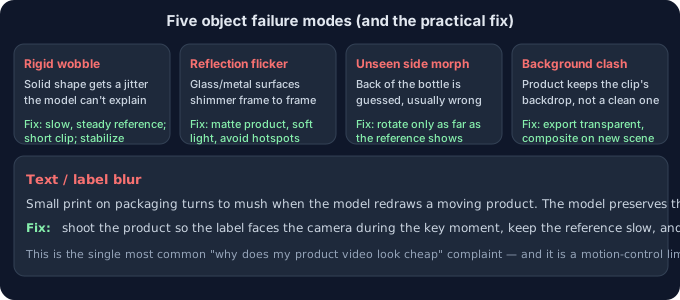
5 failure modes specific to objects (and the fixes)
| Failure | Why it happens | Fix |
|---|---|---|
| Rigid shape wobbles or jitters | Model can't explain a solid object's motion as "limbs," adds micro-noise | Slow, steady reference; short clip; stabilize the camera |
| Glass/metal surfaces flicker | Reflections shift every frame, model can't lock them | Use a matte version, soft light, avoid bright hotspots |
| Back of the product morphs | Model guesses the unseen side from one angle | Rotate only as far as the reference actually shows |
| Product stuck on the clip's background | Default export is MP4 with the reference's backdrop | Export transparent WebM / PNG-seq, then recompose |
| Label text turns to mush | Model preserves silhouette and color, not crisp lettering | Slow move, face label to camera, re-add text in post |
What to do when the motion is right but the background isn't
The default Kling export is an MP4 that keeps the reference's backdrop, which is rarely the clean studio look you want for a product. Once the product moves the way you want, open the clip in the tool on this site and export it as a transparent WebM or a PNG-sequence zip — both run in your browser, nothing is uploaded. That gives you a moving product with a real alpha channel you can drop onto any background, which is the most reliable way to finish a product showcase without the model's original backdrop showing through.
Common questions
Can I rotate a product from a single photo?
No. Motion Control copies motion from a reference video; it does not rebuild your product in 3D. To get a rotation, the reference clip has to contain the rotation — film a turntable or orbit the camera yourself.
Does the product have to be on a real turntable?
Not necessarily. A slow camera orbit around a static product gives the model the same rotation signal. A turntable is just the easiest way to keep the product centered and steady.
Will the text on the package stay sharp?
Usually not on its own. The model preserves the silhouette and dominant color, not crisp lettering, and moving text blurs. Face the label to the camera during the key moment and re-add fine print in post.
Are my files uploaded?
No. Anything you process with the background tool on this page runs in your browser; we never receive your media.