Kling Motion Control is a one-image, one-video pipeline: the character image supplies identity (the subject's look), and the reference video supplies motion. What people forget is the third thing every output contains — a background. The file you download is a complete video, and that video has a backdrop whether you wanted one or not. This guide is about that backdrop: what it actually is, when you should keep it, and — most often — how to drop it so you are left with only your animated character.
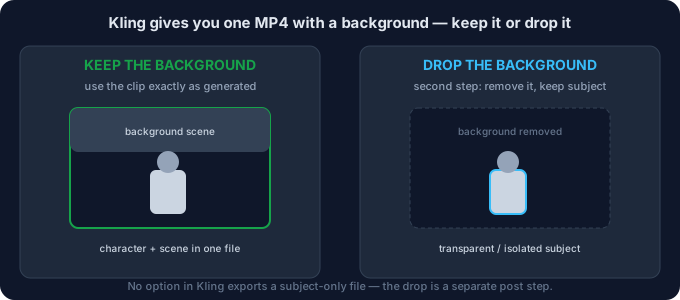
What the export actually contains
Strip the output down to its parts:
- The animated character — your character image, now performing the reference video's motion. This is the part you came for.
- The background — in match video this is the real scene the reference was shot in (a room, a street, a studio); in match image the model holds your photo's framing and fills a plainer backdrop around the subject. Either way, the backdrop is baked into the file.
- Audio — retained from the reference or muted, per the audio setting you chose. It travels with the video but has nothing to do with the background question.
There is no checkbox for "character only," no alpha channel, and no layered export. That is not a limitation you can toggle off — it is how the output is built. So the useful question is never "does it keep the background?" (it does) but "should I keep it, or drop it?"
Keep vs drop — the decision
Most people assume they must remove the background. Often they should. But sometimes the generated backdrop is exactly what they want, and removing it adds work for no gain. Decide by the end use, not by reflex.
| Your goal | Keep or drop | Why |
|---|---|---|
| Use the clip as-is in its original scene | Keep | The generated backdrop is fine; re-using it saves a step |
| Place the character into a new scene or your own footage | Drop | You need the subject isolated (alpha) to composite onto something else |
| Overlay the character on a template, title, or product shot | Drop | A busy backdrop fights the design and distracts from the subject |
| Reuse the same motion across several backgrounds | Drop | Render the character once, swap the scene each time instead of re-generating |
| The reference's background is messy, off-brief, or not yours to use | Drop | Keeping it drags the problem into every export |
If you only ever post the clip on its own, keeping is fine. The moment the character needs to live anywhere else, dropping is the right call.
Three ways to drop the background
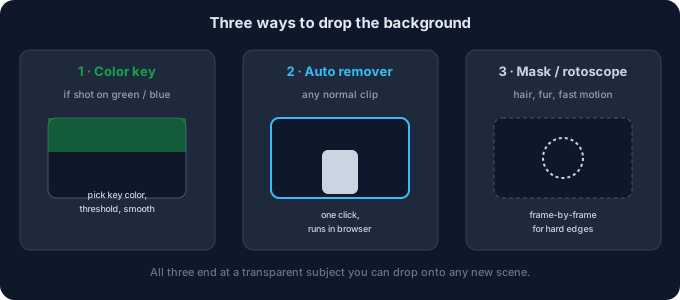
- Color / chroma key. If the reference (or the scene it was shot in) is on green or blue, key that color out directly. This is the cleanest route when the backdrop is a known solid color.
- Automatic background remover. For any ordinary clip with a real-world backdrop, an in-browser remover isolates the subject automatically — no color required. This is the default for most Kling outputs because the generated scene is rarely a clean key color.
- Manual mask / rotoscope. For hair, fur, fast motion, or semi-transparent fabric where automatic keying struggles, a frame-by-frame mask gives you control over exactly which pixels stay.
All three routes end at the same place: a subject you can drop onto any new background. The difference is only how much hand-work the clip needs.
5-step workflow to drop it
- Download the MP4 from Kling once the character moves the way you want. This is your master; do the background work on a copy.
- Open it in a background remover. The tool on this site runs in your browser, so the video never leaves your device — nothing is uploaded to a server.
- Pick the method. If the shot is green or blue, choose the key color and let the keyer do the work. Otherwise let automatic removal isolate the subject; step in with a mask only on the trouble spots.
- Export the right format. Choose a transparent WebM for quick work in a video editor, or a PNG-sequence zip when you need to fix individual frames.
- Composite onto the new background. Drop the isolated subject into your scene in your editor of choice. Because the subject is now on its own layer, the new backdrop sits behind it cleanly.
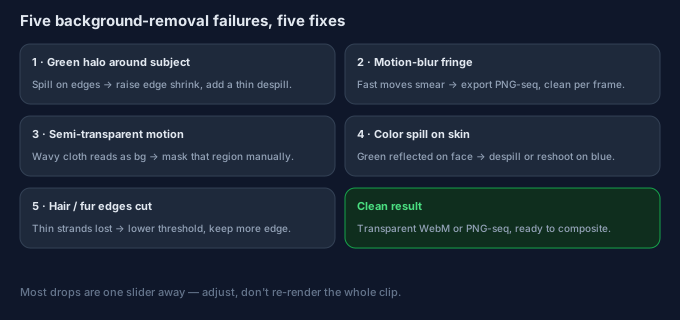
5 failure modes (and the fixes)
| Failure | Why it happens | Fix |
|---|---|---|
| Green halo around the subject | Color spill left on the edges | Raise edge shrink and add a thin despill pass |
| Motion-blur fringe on fast moves | Per-frame blur smears the edge | Export a PNG sequence and clean only the worst frames |
| Semi-transparent motion (wavy cloth) | Translucent fabric reads as background | Mask that region manually so it stays with the subject |
| Color spill on skin or hair | Green reflected from the backdrop | Despill, or re-shoot the reference on blue instead |
| Hair or fur edges get cut | Threshold set too aggressively | Lower the threshold to keep more of the fine edge |
What to do when the subject is right but the backdrop isn't
Whichever mode you used, the default Kling export keeps a backdrop — rarely the one you actually want. Once the character moves the way you want, open the clip in the tool on this site and export it as a transparent WebM or a PNG-sequence zip; both run in your browser, nothing is uploaded. That gives you a moving subject with a real alpha channel you can drop onto any background. The motion was Kling's job; the background is yours, in a second step.
Common questions
Can Kling export a transparent video?
No. There is no alpha or transparent export option. The "subject only" result is always produced in a background remover after generation.
Does match image give a clean background?
It holds your still photo's framing, but the output is still a normal video file with a backdrop — not a transparent layer. You still drop it in a second step if you want the subject alone.
Will dropping the background hurt the character's quality?
No. You are only changing what sits behind the subject; the subject pixels themselves are untouched. If the motion looked good before, it looks the same after.
Which export format should I pick?
Transparent WebM for fast work inside a video editor; a PNG-sequence zip when you need to retouch individual frames (useful for the motion-blur fringe case above).
Are my files uploaded?
No. Anything you process with the background tool on this page runs in your browser; we never receive your media.