Short answer: After a Kling Motion Control generation you download one video file — an MP4 of your character performing the motion, sitting on the background of the reference clip you supplied, up to the documented 30-second length. That is the only format Kling hands back. There is no "export transparent" or "export layers" button in Kling. If your plan needs the character on a different background (a YouTube thumbnail, a product shot, a client scene), the cut-out is a second step performed outside Kling — typically in a background remover — and from that step you get the transparent WebM or PNG-sequence formats this guide explains. Treat the Kling MP4 as your master, and every other format as something you derive from it.
This guide is built from how Kling Motion Control is documented to work (single-video output, audio kept or muted, 30-second cap) and from ordinary post-production practice. It does not quote any vendor's exact export menu, and it does not assume a format Kling does not provide. Where a step depends on another tool, that tool is named plainly.
What Kling actually outputs
When the generation finishes, you get back a playable video, not a project file. Concretely:
- One MP4. Your character image, now animated with the reference clip's motion, on the reference clip's background.
- Audio is your choice at generate time. You either keep the reference clip's original sound or you mute it. Kling does not separately deliver a music track or a clean dialogue stem — what you get is "kept" or "silent."
- Resolution and length match what you set. Up to the documented 30-second limit; the pixel size is whatever you selected in Kling.
- No alpha channel, no PNG sequence, no project file. If you look for a "transparent export" inside Kling, it is not there. That is by design, not a missing setting.
The practical consequence: the background you see in the download is the reference clip's background. Want a different one? That is the re-edit + background-removal work covered below — and it is the single biggest gap between "I made a clip" and "I have a usable asset."
Output formats, side by side
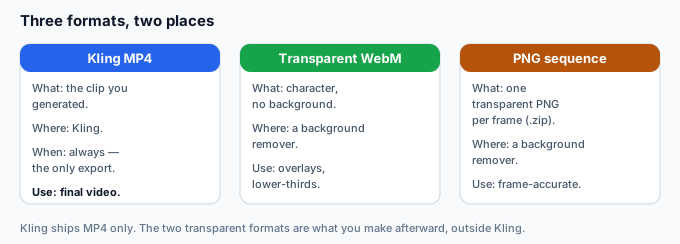
| Format | What it is | Where it comes from | Best for |
|---|---|---|---|
| Kling MP4 | The generated clip — character + reference background, audio kept or muted. | Kling (the only export it offers). | Final video, or your master copy to re-edit. |
| Transparent WebM | The character with no background, in a single video file. | Derived in a background remover after download. | Overlays, lower-thirds, dropping the character into an existing video. |
| PNG sequence (.zip) | One transparent PNG per frame, zipped. | Derived in a background remover after download. | Frame-accurate compositing in Premiere / After Effects / DaVinci. |
Decide before you download: keep the background or cut it?
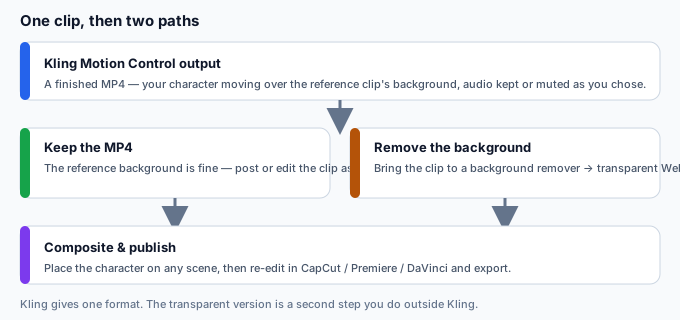
This is the fork that decides your whole workflow. Answer one question: is the reference clip's background the background you want in the final piece?
| If your answer is… | Then | Skip |
|---|---|---|
| "Yes, the background is fine." | Keep the MP4. Trim it, fix audio, and publish or hand it over as-is. | Background removal entirely. |
| "No, I need the character on a new scene." | Download the MP4, then run it through a background remover to get a transparent WebM or PNG sequence, then composite. | Nothing — this is the path most publish-ready assets need. |
How to re-edit the clip
The MP4 imports into any normal editor. The workflow below is tool-agnostic — CapCut, Premiere Pro, DaVinci Resolve, even a phone editor all cover it.
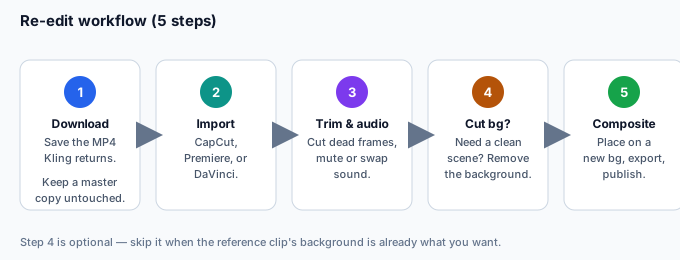
- Download and keep a master. Save the raw MP4 somewhere untouched. Every edit below happens on a copy, so you can always re-cut from the original.
- Import into your editor. CapCut (free, phone or desktop) is the fastest for social clips; Premiere or DaVinci for anything frame-accurate or client-facing.
- Trim and fix audio. Cut the dead frames at the start and end. If you muted audio at generate time, now is when you add music or a voiceover; if you kept it, check it actually fits the new use.
- Remove the background only if you need a clean scene. Skip this when the reference background is fine. When you do need it, see the next section — it is a separate tool, not a Kling setting.
- Composite and export. Place the character on the new background, add titles or transitions, and export at the platform's spec (vertical 1080×1920 for TikTok/Reels/Shorts; 1920×1080 for YouTube).
Removing the background (the part Kling doesn't do)
Kling leaves the character on the reference clip's background. To lift the character off it, you bring the downloaded MP4 to a background remover. One option is greenscreencut.com: open the clip, either key out a green or blue backdrop (if you generated against one) or use the remove-after mode on a normal background, then export a transparent WebM or a PNG-sequence zip. The whole thing runs in your browser — the file never leaves your device.
Which export you pick from the remover matters:
- Transparent WebM when the next step is "drop the character into another video" — overlays, lower-thirds, reaction layouts.
- PNG sequence (.zip) when you need frame-accurate control — rotoscoping a few bad frames, matching a separate render, or compositing in After Effects.
Common re-edit mistakes
- Hunting for a "transparent export" inside Kling. It isn't there. You derive transparency afterward in a background remover.
- Re-encoding the MP4 over and over. Each re-export through a lossy codec softens the clip. Cut from the master, export once at the end.
- Compositing before background removal. You cannot drop a character "onto a new scene" while the old background is still in the frame. Remove first, composite second.
- Leaving mismatched audio. A clip generated with the reference's original sound often carries room tone or music that fights your edit. Mute at generate time, or replace it deliberately.
- Exporting the wrong size for the platform. A horizontal MP4 posted to a vertical feed gets pillarboxed and buried. Export to spec before publishing.
After you have a clean cut-out
Once you have the transparent WebM or PNG sequence, the character is a movable asset: drop it on a branded background for a client, onto a stock scene for a YouTube intro, or into a reaction layout for Shorts. A background-free, rights-cleared clip (see the commercial-rights piece) is the asset you actually deliver — the Kling MP4 was only the raw material.
Bottom line
Kling Motion Control gives you exactly one format: an MP4 of your character on the reference clip's background, audio kept or muted, up to 30 seconds. There is no transparent or layered export from Kling — so the transparent WebM and PNG sequence you may need are a second step, done in a background remover after download. Keep the raw MP4 as your master, decide early whether the reference background is the one you want, re-edit in any normal editor, and only then remove the background and composite. Do it in that order and one generation becomes a finished, publish-ready asset instead of a clip you can't place.