Kling Motion Control is a one-image, one-video pipeline: the character image supplies identity (the subject's look), and the reference video supplies motion. But "motion" is two different things, and the orientation setting is what splits them. One part of the motion is the subject's body movement (legs striding, arms waving). The other part is the camera's movement (the frame panning, dollying in, the subject sliding across the shot). The match mode tells the model which of those two the output should reproduce.

What each mode actually controls
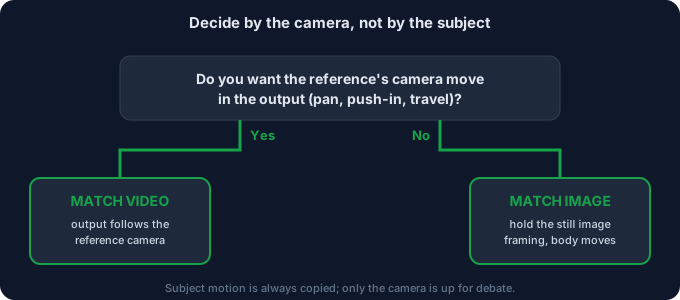
Strip it down to one question the model answers for every frame: who sets the camera?
- Match video — the reference clip sets the camera. The output's framing, angle, and any camera movement in the reference (a pan, a zoom, a tracking shot) are reproduced. The subject moves the way the reference moves, and the frame moves the way the reference moves. Use it when the thing you liked about the reference was the shot itself — the way the camera traveled.
- Match image — the character image sets the camera. The output holds the composition of your still photo: the subject stays roughly where it sits in the image, at the same scale and angle. Only the subject's body motion transfers. The reference still drives how the body moves, but its camera work is ignored. Use it when the photo is already framed the way you want and you only need the subject to come alive inside that frame.
This is the entire distinction. Everything below is just applying it to real scenes.
The one-line decision rule
If the motion you want lives in the camera (the world moving around or toward the subject), choose match video. If the motion you want lives in the subject and you want the photo's frame preserved, choose match image. When in doubt, ask: "Would this shot look wrong if the camera stayed exactly where the photo put it?" If yes, you need match video. If no, match image is safer.
Two concrete examples
Example 1 — a walk
Say your reference is a person walking across the frame in a full-body shot, starting screen-left and ending screen-right.
- Match video: the character walks across the output the same way — starts on one side, crosses, ends on the other. The travel through space is reproduced. This is what you want for a "walking down a hallway" or "entering the scene" shot.
- Match image: the output holds your photo's framing (say, a centered full-body portrait) and the character walks in place — legs striding, but staying centered in the composition. The reference's left-to-right travel is dropped. This is what you want for a product-style hero shot where the subject must remain composed and on-model.
Example 2 — a camera push-in
Say your reference is a slow dolly: the camera drifts toward the subject, ending in a tighter close-up.
- Match video: the output includes that cinematic push-in — it starts wide and closes in. Great for a dramatic reveal or a "someone approaches" beat.
- Match image: the output stays at the photo's scale and angle; the subject may gesture or speak, but the camera does not move toward it. Great when you already composed a perfect close-up and only need life in the face or hands.
The trap is picking match image when what sold you on the reference was the camera move. You'll get a still, composed subject and wonder why the "cool shot" didn't happen. It did happen — you told the model to ignore it.
When to pick which (decision table)
| Your goal | Mode | Why |
|---|---|---|
| Subject walks, runs, or travels across the scene | Match video | The spatial travel is camera + subject motion you want reproduced |
| Cinematic push-in / pull-back / pan | Match video | The camera move is the whole point of the shot |
| Keep a perfect portrait or product composition | Match image | Holds the photo's frame; only the body animates |
| Subject gestures / speaks in place | Match image | No camera travel needed; composition must stay stable |
| Reference is shaky or badly framed | Match image | Drops the reference's camera work so the photo's clean frame wins |
| You want the subject centered and on-model every frame | Match image | Prevents the subject drifting off-frame during a camera move |
5-step workflow to set it correctly
- Decide the camera first, not the subject. Before generating, name the shot: "camera moves with the walk" or "camera locked on the portrait." That single sentence picks the mode.
- Frame the character image for the mode. For match image, compose the photo exactly as you want the final frame — the model will hold it. For match video, the photo's framing matters less because the reference overrides it.
- Pick the reference by its camera, too. A reference with a smooth, intentional camera move is gold for match video; a reference shot on a locked tripod is ideal for match image (no camera signal to fight).
- Keep the clip inside 3–30s and steady. A clean, short reference gives the model an unambiguous camera-or-body signal. Long or jittery clips blur the distinction and produce half-following, half-ignoring results.
- Preview and flip if wrong. If the subject drifts off-frame, you likely wanted match image. If the shot feels locked and flat when you wanted movement, you likely wanted match video. The fix is one setting, not a reshoot of the image.
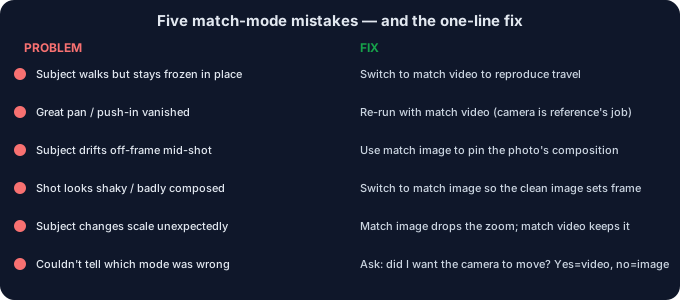
5 failure modes (and the fixes)
| Failure | Why it happens | Fix |
|---|---|---|
| Subject walks but stays frozen in place | You wanted travel, but match image dropped the reference's camera move | Switch to match video so the spatial travel is reproduced |
| Great camera move vanished | Match image ignores the reference's pan / push-in | Re-run with match video; the camera move is the reference's job |
| Subject drifts off-frame mid-shot | Match video follows a reference whose subject moved to the edge | Use match image to pin the subject in the photo's composition |
| Shot looks shaky or badly composed | Match video copied a shaky / poorly framed reference camera | Switch to match image so the clean character image sets the frame |
| Subject changes scale unexpectedly | Reference had a zoom the mode faithfully reproduced | If you didn't want the zoom, use match image; if you did, keep match video and reframe the image |
What to do when the motion is right but the background isn't
Whichever mode you use, the default Kling export is an MP4 that keeps the reference's backdrop — rarely the clean look you want. Once the subject moves the way you want (in the framing you chose), open the clip in the tool on this site and export it as a transparent WebM or a PNG-sequence zip — both run in your browser, nothing is uploaded. That gives you a moving subject with a real alpha channel you can drop onto any background, which is the most reliable way to finish the shot without the reference's original scene showing through. Match video and match image decide the motion; the background is a separate, second step.
Common questions
Is match video "better" than match image?
No. They answer different questions. Match video is for when the camera move is the point; match image is for when the photo's composition is the point. Using the wrong one is the only real failure.
Can I get body motion and a locked frame at the same time?
Yes — that is exactly what match image does. The subject animates (legs, arms, face) while the camera stays put at the photo's framing.
What if my reference was shot on a tripod?
Then there is almost no camera signal to copy, so match video and match image look similar for framing — but match image is the safer default because it guarantees your photo's composition is preserved.
Does the mode affect identity or quality?
Not directly. It changes framing and which motion is reproduced. Identity, clarity, and failure fixes are governed by the image and reference quality, not by the match setting.
Are my files uploaded?
No. Anything you process with the background tool on this page runs in your browser; we never receive your media.