Short answer: A normal photo of yourself — a selfie, a headshot, even a decent casual shot — is exactly what Kling Motion Control wants as its character image. The tool does not re-shoot you; it takes your still image as the "who" and a separate reference clip as the "how they move," then animates your likeness with that motion. So the quality of your result is set mostly at the photo stage, before you ever press generate. The fixes below are about giving the model a photo it can lock onto: clear face, enough pixels, simple surroundings, even light.
This guide is built from how Kling Motion Control is documented to work (a static character image plus a 3–30 second reference video, with identity preserved from the image) and from ordinary portrait-photography practice. It does not quote any vendor's exact UI labels, and it does not invent camera specs. Where a step depends on another tool, that tool is named plainly.
How Motion Control actually uses your photo
People new to the feature assume the reference video and the character image do the same job. They don't. Understanding the split is what makes your photo choice obvious:
- The reference video = the motion. A 3–30 second clip of a real person or actor doing the movement you want. Kling extracts the motion trajectory from it.
- Your character image = the identity. A still photo. Kling keeps the face, build, and look of this image and reposes it along the motion from the reference.
- The output = your likeness, moving like the reference. That is the whole trick. If the photo is weak, the identity layer is weak — and the face is the first thing to slip.
Practically: you can use a blurry, low-effort reference video and still get a usable clip, because motion is forgiving. You cannot use a blurry, low-effort photo and expect your face to hold, because identity is strict. Spend your effort on the photo.
Which photos work (and which don't)
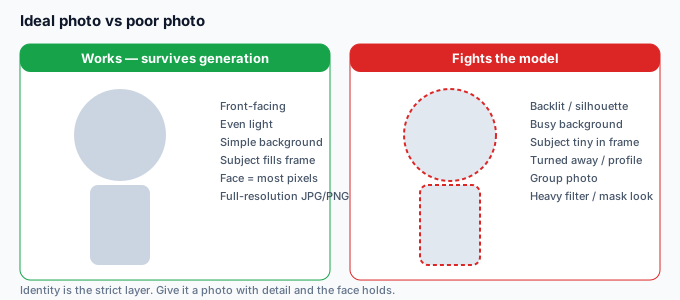
Before preprocessing, pick the right source. This is the single highest-leverage decision:
| Your photo is… | Does it work? | Why |
|---|---|---|
| Front-facing, well-lit, you fill most of the frame | Best. | Face is large and clear — the identity layer has detail to lock onto. |
| Selfie, decent light, simple wall behind | Good. | Slightly less detail than a rear camera, but clean enough to hold likeness. |
| Casual shot, you're small in the frame | Weak — crop first. | Too few pixels on the face; Kling guesses features and identity drifts. |
| Group photo | Avoid. | The model can't tell which face is "you"; it may blend or pick the wrong person. |
| Strong backlight / silhouette | Avoid. | No facial detail to preserve — identity collapses to a shape. |
| Heavy filter, costume, or makeup that hides your face | Risky. | The model learns the filter, not you; results look like the costume, not your likeness. |
| Turned-away or side profile only | Weak. | Front-facing reference is what the feature expects; a profile fights it. |
How to preprocess your photo
You don't need Photoshop. Five plain steps take a casual shot to a Kling-ready character image:
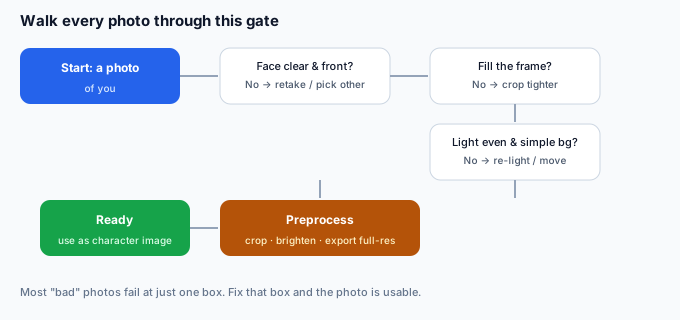
- Crop to the face and shoulders. Keep the subject large. Kling's documented image window runs from tall portrait to wide landscape (roughly 1:2.5 to 2.5:1), so a head-and-shoulders crop fits comfortably — and gives the model more face pixels than a full-body shot.
- Fix the light. Even, front-facing light beats dramatic side light for identity. If the shot is dim, brighten it slightly; don't over-sharpen, which invents detail the model then treats as real.
- Simplify the background. A plain wall or out-of-focus backdrop is ideal. A busy background doesn't usually break identity, but it confuses edge separation later if you plan to cut the character out (see the background step below).
- Match the mood to the reference. If your reference clip is a cheerful wave, use a neutral or smiling photo — the model blends expression from both inputs, and a grim photo under a happy motion looks off.
- Export a clean JPG or PNG at full resolution. Kling's documented image limits are a JPG or PNG, at least 300×300 px, under roughly 10 MB. Don't upscale a tiny screenshot to meet the size — start from the largest original you have.
Common photo mistakes and how to fix them
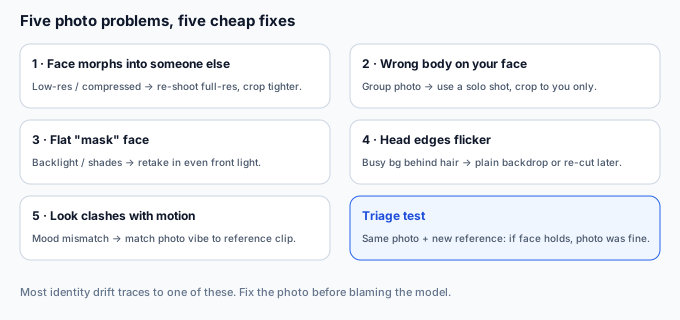
These are the failures that show up specifically when the character image is the problem (as opposed to the reference video). If your clip's face drifts, start here:
| Symptom in the clip | Caused by (photo) | Fix |
|---|---|---|
| Face slowly morphs into someone else | Low-resolution or heavily compressed photo | Re-shoot or find the original at full size; crop tighter so the face is bigger. |
| Correct face but wrong person's body | Group photo; model picked the wrong subject | Use a solo shot; crop so only you are in frame. |
| Flat, featureless face / "mask" look | Backlight, sunglasses, or heavy shadow over the face | Retake in even front light; remove anything covering the face. |
| Edges of head flicker when moving | Busy or high-contrast background behind hair | Use a plain backdrop; or accept it and re-cut the background afterward (next section). |
| Look doesn't match the motion's vibe | Expression or styling in the photo clashes with the reference | Pick a photo whose mood matches the reference clip's action. |
When the photo isn't the problem
If you've cleaned up the photo and the face still drifts, the cause has moved to the reference video or the generation itself — not your image. That is a different fix path (poor motion match, identity loss on fast movement, hand/finger breakage), covered in the dedicated pieces on fixes and on recovering a lost identity. The quick triage: keep the same photo, run it against a different reference clip. If the face holds on clip B but not clip A, your photo was fine and the reference was the culprit.
After you generate: cut the character out
Kling returns your likeness moving on the reference clip's background — there is no transparent export from Kling itself. If your plan needs you on a clean scene (a YouTube thumbnail, a client backdrop, a product shot), bring the downloaded clip to a background remover. One option is greenscreencut.com: open the clip, either key out a green or blue backdrop (if you generated against one) or use the remove-after mode on a normal background, then export a transparent WebM or a PNG-sequence zip. It runs in your browser — the file never leaves your device. A clean, rights-cleared cut-out of your own likeness is the asset you actually ship; the Kling clip was the raw material.
Bottom line
Your own photo is not just allowed as a Kling Motion Control character image — it is the normal case. The reference video supplies the motion; your photo supplies the identity, and identity is the strict part. Use a front-facing, well-lit, tightly cropped shot on a simple background, export it at full resolution within Kling's documented limits, and you've done 80% of the work before generating. If the face still drifts after that, the problem has moved to the reference clip, not your image. Generate, then lift yourself off the reference background with a background remover — and you have a publish-ready clip of you, moving exactly like the reference, on whatever scene you choose.