Short answer: Kling Motion Control does not require a human. It takes a static character image and a 3–30 second reference video, copies the movement from the clip, and applies it to whatever is in the image — preserving that image's identity. A pet photo, an anime render, a product shot, or a mascot all work as the "character image." The limits are not about species; they are about shape complexity (paws, tails, line-art, rigid edges) and how far the subject drifts from what the model was mostly trained on (people). Below is a subject-by-subject breakdown and the fixes that recover most failed renders.
This is a capability and limits guide based on how the feature is documented and how non-human inputs are commonly reported to behave in public. It is not a head-to-head benchmark render, and the model improves over time — treat the "breaks" column as "watch for," not "impossible."
Why non-human works at all
Motion control is, at its core, an image-and-video pairing: one image defines who moves, one clip defines how they move. The tool does not have a "human-only" gate. Identity preservation means "keep the look of the supplied image," and that applies to a cat's fur pattern, an anime outfit, or a product's silhouette just as much as to a face. The catch is that most of the model's training weight sits on human bodies, so non-human shapes are where it guesses more — and guessing is where artifacts appear.
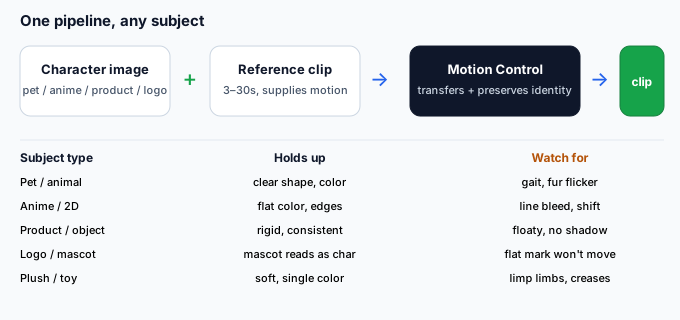
What works, by subject type
| Subject | Does it work? | What holds up | What breaks first | Best setup |
|---|---|---|---|---|
| Pet / animal photo | Yes, with care | Clear full-body shot, distinct fur color, single subject | Four-legged gait distortion, fur flicker, leg merge | Reference clip of a similar animal doing a similar move |
| Anime / 2D render | Yes, often cleanly | Flat color, clean line-art, strong silhouette | Line bleed, color shift, semi-transparent effects | High-res pose-sheet style image, simple camera or pose move |
| Product / object | Yes | Rigid edges, consistent shape, single color | "Floaty" look, no contact shadow, lighting mismatch | Reference of the object (or a stand-in) rotating or being handled |
| Logo / mascot | Partially | A mascot with a face/body reads as a character | A flat logo has nothing to "move" without a reference of that shape | Treat it as a mascot character, not a 2D mark |
| Plush / toy | Yes | Soft, single-color, clear outline | Stuffing creases read as noise, limbs go limp | Reference of a similar plush being moved |
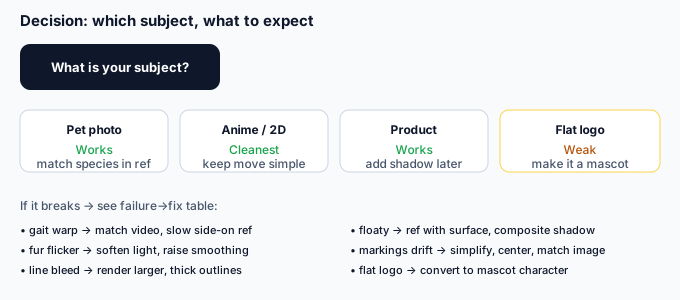
Which one should you attempt?
The fastest way to decide is by what your reference clip actually shows:
- "I have a photo of my dog/cat and a video of a dog doing the trick I want." → Pet mode works. Match the species and the rough body size in the reference, or the gait will warp.
- "I have an anime character image and I want it to walk or turn." → Among non-human subjects, anime is often the cleanest, because flat color and clean edges are exactly what the model handles well. Keep the move simple.
- "I have a product and want a rotating showcase." → Works, but expect it to look slightly weightless. A reference of the real object being rotated (or your hand moving it) helps more than a person imitating the motion.
- "I have a flat logo and want it to dance." → This is the weak case. Motion control moves a subject, not a graphic. Give it a mascot version (a character built from the logo) and a reference of that kind of body moving.
The real limits, explained
Non-human subjects fail in predictable ways, and they all trace back to the same cause: the model is interpolating a shape it has seen less of.
- Four-legged gait distortion. Dogs and cats bend differently than the two-legged motion the model over-learns. Legs can merge, stretch, or swap. Use a reference where the animal's legs are clearly separated and the gait is slow.
- Fur and fine detail flicker. High-frequency texture (fur, feathers) shimmers frame to frame. A slightly out-of-focus or soft-lit source image reduces the flicker more than a razor-sharp one.
- Anime line bleed and color shift. Thin outlines and gradients can bleed or shift hue. Render the source at high resolution and avoid semi-transparent glows; flat, confident color holds best.
- Object floatiness. Products and rigid objects move "correctly" but look unsupported. Add a subtle shadow by keeping a neutral floor in the reference, or composite one later.
- Identity drift without a face. For non-human subjects, "identity" is shape + color + markings. Drift shows as a changed fur pattern or a warped logo. It is the same root cause as face change in human renders — just read on the body instead of the face.
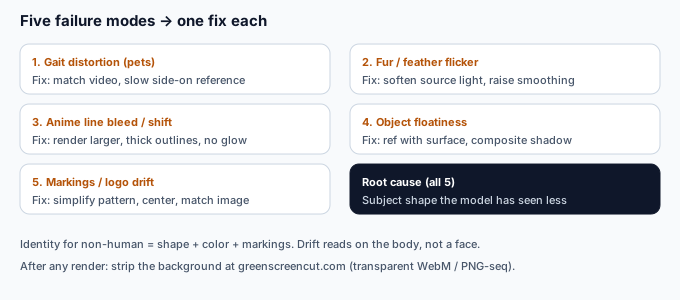
Failure → fix (non-human edition)
| Failure | Fix |
|---|---|
| Pet legs merge or stretch | Switch to match video with a slow, side-on reference of the same species; avoid top-down or fast spins. |
| Fur / feather flicker | Soften the source lighting; raise edge smoothing slightly on the final cut-out; avoid pure-white fur on a white background. |
| Anime lines bleed or shift | Export the character image larger than needed; keep outlines thick; drop semi-transparent glows from the source. |
| Product looks floaty | Use a reference that includes a surface/shadow; or composite a contact shadow in post with a background remover. |
| Markings / logo drift | Simplify the distinguishing pattern; keep the subject centered and large in the frame; retry with match image if the camera move is the point. |
After you generate: remove the background
Whatever your subject, the moving clip usually comes out on the reference clip's background. To place a pet, anime character, or product on a new scene, the practical next step is a background remover. Bring the clip to greenscreencut.com and either key out a green/blue backdrop or use the remove-after mode, then export a transparent WebM or a PNG-sequence zip you can composite anywhere. For anime and product shots this is especially clean, because flat edges key out with almost no fringe — the two-step (generate motion → strip the background) is what turns a still non-human image into a usable, background-free asset.
Bottom line
Kling Motion Control is not human-locked. Pets, anime characters, products, plush toys, and mascots all work as the character image; the only real variable is shape complexity. Anime and rigid products are often the easiest non-human subjects; pets need a well-matched reference to avoid gait warps; flat logos need to become a mascot before they can "move." Match your reference clip to your subject's actual shape, watch for the five failure modes above, and strip the background afterward — and non-human motion control becomes a reliable workflow rather than a gamble.